





Did you know that your router can function as a presence-detection sensor for your Home Assistant smart home? It’s easy enough to set up, perfect for some things, and terrible for others.Your router can detect when you leave home, but there’s a catch
I have some thoughts.
Turning your Wi-Fi router into a presence sensor
Works great with a smartphone
There are all sorts of ways to detect presence in Home Assistant. You can use passive infrared sensors that sense heat signatures, mmWave radar sensors that detect persistent presence, Bluetooth proxies that scan for device signatures, and the Home Assistant companion app for Android and iPhone.
Wi-Fi routers can also detect presence by monitoring for devices that join and leave the network. To do this, you’ll need to connect Home Assistant to your router so that it can fetch a list of connected devices. The smart home platform periodically checks this list, generating entities for any devices it finds and deciding whether they’re home, away, or unavailable.
In my case, I’m using a custom integration installed via the wonderful Home Assistant Community Store. Since I have a TP-Link router, the Home Assistant TP-Link router integration is my main option. Some routers are compatible with Home Assistant natively; others require a bit more work. Ultimately, the method remains the same.
I gave the integration my router’s IP address, username, and password. I left the default refresh interval at 30 seconds, since querying too often feels like asking for problems. I then used the Settings > People menu to bind the entity generated for my iPhone to my user account. I did the same for my partner, and you could do this for literally any Wi-Fi device: laptops, desktop computers, handheld consoles, and so on.
You don’t need to bind an entity to a person in Home Assistant for this to be useful; you can just use the status of an entity generated by your router.
Testing Wi-Fi presence response time
Is a 30 second refresh rate enough?
I’ve had this Wi-Fi presence functionality running for months without any problems. The only “issue” I’ve encountered is that I have to disable the integration if I want to do anything on my router’s admin panel, since only one login is allowed at a time and I’ll be booted every 30 seconds if I don’t.
I don’t really use presence automations in my smart home, so I figured it was time to try. The main problem with using a Wi-Fi router as a presence sensor is that 30-second window. The time delay before an automation runs is always going to be 30 seconds or less from when the “sensor” detects I have dropped off the network.
I thought I’d put this to the test by creating two simple automations: one sends me a notification when it detects I’ve left the house, another sends me a notification when it detects that I’ve returned. I figured I’d walk out of the house and see how far I get before I receive the notifications.

There are some variables here that are going to make a big difference, with the main one being router (or access point) placement. In my case, the router is right at the front of the house since that’s where my modem is connected to the wall. On paper, this means that arrivals should be more reliable than departures, since I’ll be detected before I even get to my front door.

My testing confirmed this hypothesis. I was consistently able to walk to the bus stop 30 meters (100 ft) away from my house before seeing the leaving notification, but the arrival notification usually arrived before I’d reached the front door.
What’s it good for?
This largely depends on your network setup
A router “sensor” is great for detecting the presence of specific people, where infrared and mmWave sensors struggle. They can’t match Bluetooth proxies for room-specific locations, but they work everywhere your network does. You can use them to trigger workflows when specific devices join your network, even if those devices cannot talk to Home Assistant in any other way.
The delay is the most limiting factor, but there are ways around this. You could turn an old router into an access point to improve your home’s coverage, for example. You can also limit Wi-Fi-based presence triggers to actions that aren’t time-sensitive.
For example, a 30-second delay on turning off my home’s heating or cooling when I leave isn’t a big deal. Since the front of my house and driveway is bathed in Wi-Fi coverage, I could use this to trigger my porch light when I get home. It’s also great for announcing the presence of specific people.

For example, I can get a notification when a visiting family member has arrived before they’ve even left their vehicle (this works for anyone who has access to the Wi-Fi network). If they’ve visited recently, there’s probably an entity waiting for you in Home Assistant that you can use as a trigger.
- Brand
-
Unifi
- Range
-
1,750 square feet
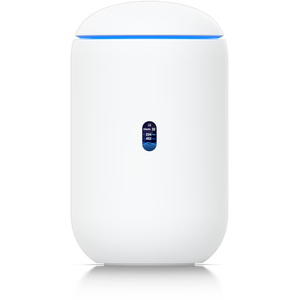
The Unifi Dream Router 7 is a full-fledged network appliance offering NVR capabilities, fully managed switching,a built-in firewall, VLANs, and more. With four 2.5G Ethernet ports (one with PoE+) and a 10G SFP+ port, the Unifi Dream Router 7 also features dual WAN capabilities should you have two ISP connections. It includes a 64GB microSD card for IP camera storage, but can be upgraded for more storage if needed. With Wi-Fi 7, you’ll be able to reach up to a theoretical 5.7 Gbps network speed when using the 10G SFP+ port, or 2.5 Gbps when using Ethernet.
The best approach to presence detection is one that covers different use cases. Room-level detection is ideal for checking where your cats are hiding or turning lights off when you leave, but whole-home Wi-Fi presence sensors have their uses too—and everyone’s got one!