




Between its terrific support for low-end hardware, detailed documentation, and the ultra-handy PVE-Helper Scripts repo, Proxmox is significantly easier to pick up for newcomers compared to other virtualization platforms. But that doesn’t change the fact that Proxmox is loaded with cool QoL-enhancing (if somewhat complex) features, some of which you might not even encounter unless you go look for them specifically.
And I’m not just talking about the advanced SDN stack or cluster provisions on Proxmox, either. Although most beginner-centric guides recommend enabling the no-subscription repo first and foremost, there are plenty of other hidden tweaks that can enhance your tinkering experience on Proxmox.

5 common Proxmox mistakes everyone makes when starting fresh (and how to avoid them)
Yeah, I’ve made some of these mistakes in my early Proxmox days
Optimize the CPU scaling governor
To prevent getting bankrupt by sky-high energy bills

If there’s one problem home servers are infamous for, it’s their tendency to guzzle electricity when you leave them running 24/7. Although I still recommend taking a trip to your motherboard’s BIOS and disabling CPU overclock settings, modifying the CPU scaling governor can provide noticeable improvements to your PVE rig’s idle wattage. If you haven’t heard of this term, the CPU governor algorithm decides the processor’s clock speeds in accordance with the overall tasks.
By default, Proxmox sets the CPU scaling governor profile to performance mode, which ensures the processor runs at higher frequencies for longer periods, thereby increasing the power drawn by the server. But for most users, switching to the powersave profile is the better option, as it throttles down the clock speeds when the CPU isn’t actively involved in heavy workloads. The simplest method to switch to the powersave profile involves running echo powersave | tee /sys/devices/system/cpu/cpu*/cpufreq/scaling_governor in your Shell tab, but if you’re dissatisfied with the burst performance (even though the peak performance shouldn’t get too affected), you can also replace the powersave variable to performance.
Install Node sensor readings view
It’s great for keeping an eye on the hardware temps

On its own, Proxmox can track the resource consumption statistics for the underlying host really well. Sadly, it’s incapable of grabbing the temperature metrics for the CPU, GPU, and other components of your home server without additional tools, which is a bummer for a system that you’ll probably end up running 24/7. I’ve looked into a bunch of packages to keep tabs on my system temps on Proxmox, and while the CLI-only tools are pretty handy, nothing beats the utility of the Node sensor readings view repository.
Rather than just pulling the processor temperatures inside the terminal whenever I run a specific command, the Node sensor readings view package pulls the temp metrics for multiple components on the Summary page, including the GPU, storage drives, and every CPU core. I tend to avoid adding extra packages to my Proxmox host machine, but being able to monitor the host machine’s temps directly on PVE’s web UI makes Node sensor one of the only exceptions to this rule.
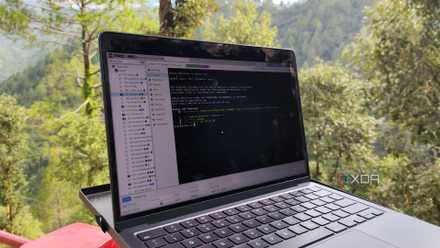
I added real-time temperature monitoring to my Proxmox dashboard, here’s how
An easy way to keep tabs on the system temps from the PVE web UI
Set up a Pulse monitoring server
Or, at the very least, enable notifications for Proxmox events
Since we’re already on the subject of keeping an eye on Proxmox’s stats, the Pulse utility takes everything I love about PVE’s resource-tracking provisions and dials them to 11. Besides neatly pinning the health, runtime, and resource consumption metrics on a gorgeous UI, Pulse can also retain these statistics long term, making it great for pinpointing the exact time frame where things went wrong with a specific virtual guest.
Pulse even pairs with notification servers and client apps, ranging from good ol’ self-hosted Gotify containers to Discord, Slack, and conventional email providers. That way, I get alerted immediately if something untoward happens to my Proxmox servers, while Pulse’s in-depth notification thresholds ensure I don’t get disturbed by false positives. I’ve got a bunch of Docker, Kubernetes, and Proxmox Backup Server nodes configured in my home lab, and I really appreciate how Pulse also meshes well with all of them. Speaking of PBS…
Connect the PVE node to Proxmox Backup Server
PBS is significantly better than the vzdump functionality on Proxmox
Although most newcomers tend to rely on the vzdump backups built into Proxmox during their early days, I recommend switching to a dedicated PBS node as soon as you can. I’ve got two separate Proxmox Backup Server nodes in my arsenal – one that remains in my local home lab and connects to all my PVE systems, and another that stays in a relative’s place miles away from my goblin cave and routinely pulls snapshots every two weeks.
While its 3-2-1 backup support is one of my main reasons for using PBS, I also rely heavily on its efficient storage management provisions. Besides the incremental nature of its snapshots, PBS uses deduplication to turn snapshots into chunks and ensures that each chunk gets saved only once. For a virtualization environment where I run multiple virtual guests with similar files and OS modules, this can massively reduce the space hogged by snapshots.
Likewise, PBS’ recovery tools are just as handy once you start working on fun (and potentially disastrous) home server experiments. As someone with a couple of dev VMs, I’ve used the selective recovery feature to quickly grab project files from broken virtual machines more times than I’d like to admit. There’s also the live restoration functionality, which lets me use a virtual machine even while PBS is busy recovering the rest of its contents instead of forcing me to wait several minutes for the restoration process to finish. Yes, you might end up spending extra on a dedicated Proxmox Backup Server rig, but its QoL features make it borderline essential if you’re planning to build a full-on home lab.

Besides everything I’ve mentioned so far, I’ve got some miscellaneous tips for fresh Proxmox setups. If your PVE workstation has a graphics card, I’d recommend installing its drivers as soon as you can. Between self-hosted LLMs, AI-heavy network video recorders, and media servers, there are plenty of LXCs that can harness your GPU’s computing prowess. As such, getting the drivers sorted out beforehand makes passing your graphics card to new containers a lot easier once you start looking into LXC passthrough shenanigans.
For folks with standalone Proxmox nodes running off budget SSDs, I’d recommend turning off the pve-ha-lrm.service and pve-ha-crm.service processes, as these cluster-centric daemon processes can wear out your storage drive by their intensive write tasks. If you’re as paranoid about your SSD’s health as I am, you can install Log2Ram on your host, which moves the constant write operations associated with system logs to memory and only copies them to the SSD at infrequent intervals.


