



The Steam Machine is fast approaching, but realistically, we don’t need Valve to build a dedicated home console, since the Steam Deck is already a chameleon. Why spend $1,000+ on Steam’s new console when the Steam Deck is a handheld you can use on the train and also doubles as a flawless console under the TV? By using a Steam Deck dock, you can turn this handheld into a permanent living room fixture that easily outclasses the convenience of Windows and the locked-down ecosystem of traditional consoles.
It’s not perfect but it gets a lot right
Using a PC in the living room doesn’t feel great
There’s a lot of friction to bypass
Until recently, there has been friction with using a PC to game in your living room. Trying to navigate Windows 11 with a wireless keyboard on your lap, dealing with text gaming bugs at 4K, and wrestling with Bluetooth controller pairing timeouts has been a nightmare. With Steam’s new console, the Steam Machine, set to release very soon, I’ve wondered whether I’d even need it.
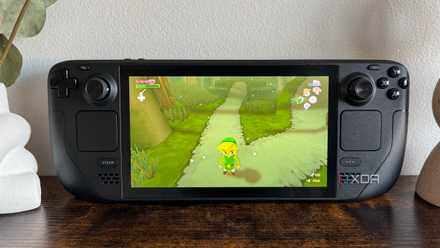
On my desk, I have a 15W Steam Deck. I could hook it up with a $30 third-party USB-C dock, which is completely hidden behind my TV, turn on a wireless controller, and basically have what Steam is advertising with its Steam Machine, ready to go.
By using my Steam Deck, I have the benefit of its fantastic software, which is amazing when compared to the experience of using a Windows-based handheld like the ROG Ally X paired with the dock on my TV. Windows treats the TV dock as a secondary desktop monitor, leading to micro-stutters, resolution mismatches, and audio routing failures.
However, thanks to Gamescope, Steam OS’s custom micro compositor elements like resolution switching, input lag, and UI rendering are all managed for you, completely in the background. This means when you dock the Steam Deck, Steam OS doesn’t scale a messy desktop. It instead seamlessly transitions its UI container to the TV’s native resolution while allowing the game to render at a highly efficient internal baseline.
Will games look good at 4K?
Upscaling makes a big difference

So the elephant in the room is: is it really worth gaming on a Steam Deck while hooked up to a 4K TV? Because realistically, the question beckons: how can a handheld APU drive a massive 4K TV screen? How can you upscale without a performance hit?
The technical formula for docking means you don’t run the game at native 4K, which would absolutely melt the APU’s frame times. Instead, you set the game’s internal resolution to 720p or 1080p and let the Deck’s system-level AMD FSR or integer scaling handle the heavy lifting, rather than completely melting the device.
Alongside this, it is worth noting that because you’re sitting a decent distance away on your couch whilst you’re playing on your 4K TV (rather than two inches away from the screen like you would in handheld mode), a high-quality 1080p upscale looks remarkably sharp and clear and maintains a rock-solid, fluid frame rate.
Make sure you use the right dock
It makes all the difference

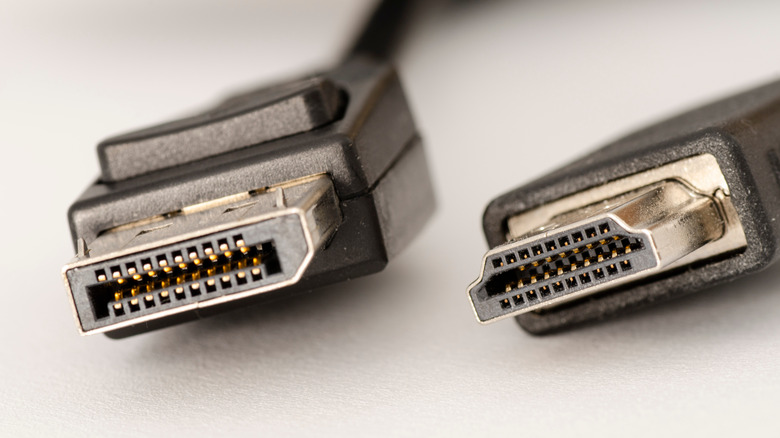
If you want to use your Steam Deck with a dock, the first step is to select the correct dock. Make sure you pick one with HDMI 2.1 or DisplayPort 1.4 native output. Rather than buying a cheap travel hub, which can often be limited to 4K/30Hz, you can use a dedicated Steam Deck dock that explicitly supports 4K 60Hz or 1440p 120Hz with VRR pass-through to ensure smooth frame synchronization with modern TV panels. Just ensure that if you’re opting for DisplayPort, your TV actually has a DisplayPort on the back for you to plug it into.
Once your dock is ready to go, plug it in, then configure the global external display resolution. Navigate to your settings and then display and turn off “Automatically set resolution”. Manually lock the external display output to 1920 x 1080 at 60Hz or 120Hz. This ensures the APU never wastes processing cycles, rendering the desktop environment at native 4K resolution.
Engaging system-level FSR sharpening layers will then allow your game to upscale effectively. Launch your game. Hit the Quick Access menu, which is the three dots on your controller. Navigate to the Performance tab and slide the scaling filter over to FSR. Set the FSR sharpening value to 2 or 3 to add crisp edge definition to the 1080p-4K TV translation.
For demanding AAA titles, using Steam OS’s per-game performance profiles to lock the output to 40FPS or 45FPS might be effective if your TV supports a high-refresh-rate container. This stabilizes frame pacing and eliminates visual screen tearing.

- Type
-
Steam Deck Dock
- Color Options
-
Black
- What’s Included
-
Dock
- Brand
-
NewQ
The NewQ Steam Deck Dock is a 4-in-1 dock that boasts a unique design with two USB 3.0 ports, an HDMI 2.0 output, and a 100W USB-C charging port. It also has a kickstand to hold it up instead of sitting in a dock, and the outputs come out facing upward rather than downward.
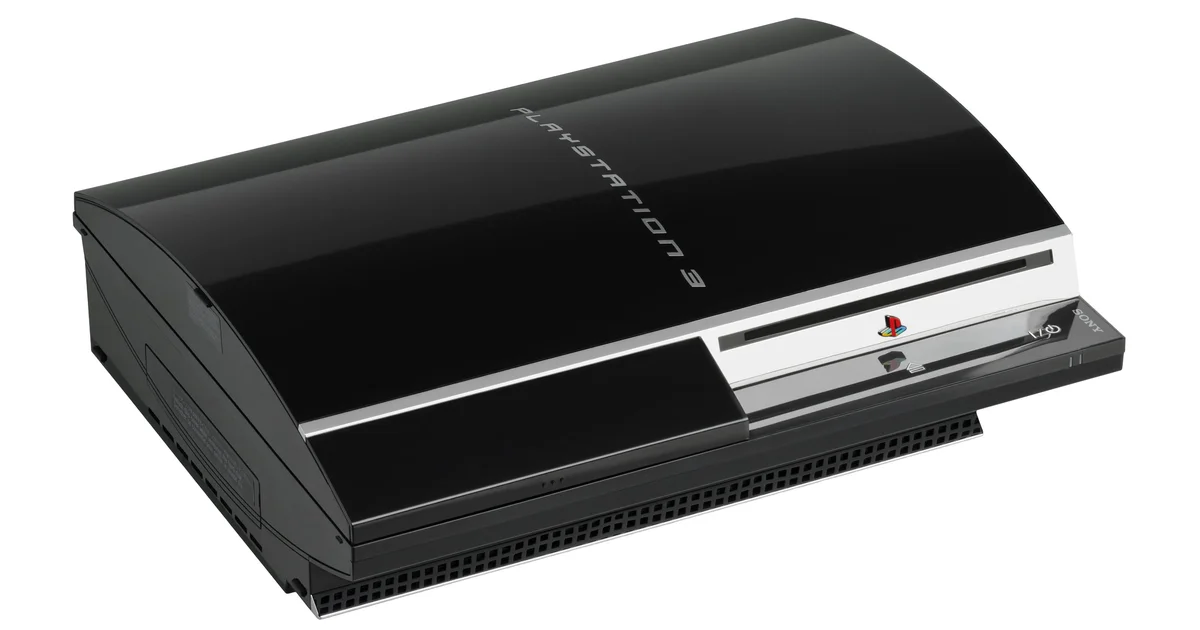
By using your Steam Deck to game in your living room, your first win is power efficiency. The hidden advantage of using your Steam Deck over a massive desktop gaming rig or even a console is that it draws significantly less power. A PS5 Pro or gaming PC can draw anywhere from 200W for the former to 800W for the latter from the wall, generating significant fan noise and heat in your media console. The Steam Deck draws 25W to 30W while docked; it runs exceptionally cool, remains whisper quiet behind your TV cabinet, and keeps your electricity bill completely unbothered during all-night gaming sessions.
You don’t need a Steam Machine
A Steam Deck works just fine
The dream of the Steam Machine is noble, but unfortunately, it just feels a little bit unnecessary, especially at its alarmingly high price point. Valve didn’t need to build a heavy console to win the living room. They’ve already perfected the software architecture on their mobile chip in the form of the Steam Deck, and it’s a much cheaper solution to boot.