



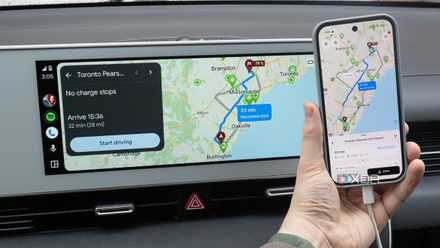

When I first bought my Ioniq 5 EV a couple of years ago, I was surprised to find out that it didn’t support wireless Android Auto or CarPlay. It was late 2022, and while wireless, phone-powered in-car infotainment was becoming more common, for some reason Hyundai opted for wired connectivity in the first version of its flagship EV. Looking back, this was a really strange decision on the part of the South Korean automaker.
While plugging my Android device into my car’s front USB port isn’t exactly a chore, it can be pretty annoying sometimes, especially when I’m in a hurry. Also, if you’ve experienced the convenience of wireless Android Auto in a vehicle before, it’s sort of difficult to go back to a wired setup. This is where the Carlinkit 5.0 (2air) comes in. As long as your vehicle supports wired Android Auto or CarPlay, this tiny $66 dongle easily added wireless Android Auto to my car in just a few minutes.
There are several wireless Android Auto adapters out there, but I ultimately landed on the Carlinkit 5.0 (2air) because the price is right, and it comes from a relatively reputable company in the space. There are far more expensive, arguably better adapters out there, like Motorola’s MA1 for example, but for me, the Carlinkit 5.0 strikes a decent balance between performance and price.
It’s worth noting that, in addition to Android Auto, the Carlinkit 5.0 also works with Apple’s CarPlay
The Carlink 5.0 (2air) adds wireless Android Auto to your car in just a few minutes
I encountered one key issue, though
Setting up the Carlinkit 5.0 with Android Auto was mostly straightforward. In the box, you get two cables, including a USB-C-to-USB-C and a USB-C-to-USB-A. In my case, I used a USB-C-to-A cable since my Ioniq 5 only features USB-A ports. After plugging in the Carlinkit 5.0, I turned on my car and tapped the button that launches Android Auto.
I was instantly greeted by a black information screen displaying the Carlinkit logo. Next, I navigated to my Pixel 10 Pro’s Settings app, selected Bluetooth, and found the connection labeled AutoKit. I selected it, and the pairing process started. Here’s where I ran into an issue. While my Pixel 10 Pro initially connected to the Carlinkit 5.0, it immediately disconnected. This seemed to happen repeatedly, even after I restarted my phone and turned my car on/off again.

My first thought was that I needed to update the dongle’s firmware, so I navigated to my Pixel 10 Pro’s Wi-Fi Connections in the Settings app, connected to the AutoKit’s Wi-Fi network, and opened 192.168.50.2 in my browser. Next, I checked for updates in the Settings menu, but none were available. In the end, it turned out that for some reason, the Carlinkit 5.0 was set to work only with CarPlay, so I changed the HULink Type to Automatic, enabling Android Auto compatibility.
Out of the box, the above problem shouldn’t be an issue. While I just started using Carlinkit 5.0 with Android Auto, I’ve used it with CarPlay for a few years. My best guess is that, at some point, I changed the settings to work only with CarPlay (likely by accident). Still, it’s worth mentioning how I solved the issue in case anyone else encounters the problem.
Thankfully, this solved the problem, and the Carlinkit 5.0 instantly connected to my Pixel 10 Pro. You’ll know the pairing process is successful when you see Android Auto pop up on your information screen (you should also see the Carlinkit 5.0’s logo flashing Blue as it connects). The next time you get into your car and boot up Android Auto, you won’t need to go through the setup again. Instead, your phone should just instantly connect and boot into Android Auto. This takes roughly 10 seconds, and in some cases I’ve still needed to select my phone from the Carlinkit 5.0’s main menu, which adds a bit more time to the boot-up process.
With the Carlinkit 5.0, you get a reliable, no-frills experience
Switching between users can be frustrating

My experience with the Carlinkit 5.0 has been mostly smooth. Apps like Waze run fine, and Gemini continues to be a mostly helpful and sometimes frustrating in-car AI assistant. Additionally, once the dongle is connected, it stays that way, and it’s easy to forget you’re even using it. Over the last few days of using Carlinkit 5.0 with Android Auto, my phone’s connection hasn’t dropped once. The experience isn’t perfect, though. I’ve run into issues where I can’t get Android Auto to appear on my Ioniq 5’s display, and also a couple of situations where navigation gets a little laggy. This is one of the key issues with wireless Android Auto — there’s always some latency compared to wired Android Auto, even if your car natively supports it.
Things can also get annoying very quickly if you share your car with other family members. There just isn’t a seamless way to switch users, unlike with other wireless Android Auto and CarPlay adapters, and if you both get into the car at the same time with your respective devices, it feels entirely random what phone the Carlinkit 5.0 connects to first. This problem alone makes me miss the simplicity of wired Android Auto, where all I need to do is unplug my device and plug my partner’s in to switch to her phone.

Still, you get what you pay for here. There are far more expensive and capable wireless Android Auto adapters out there, like Carlinkit’s more recent CP2A Pro, which features faster wireless connectivity and in-car multimedia features usually only accessible with sideloading. The Carlinkit 5.0 is a reliable, cheap wireless Android Auto adapter that gets the job done and is easy to set up. If you’re looking for a simple way to add wireless Android connectivity to any vehicle stuck in a wired infotainment world, it’s a great option.