





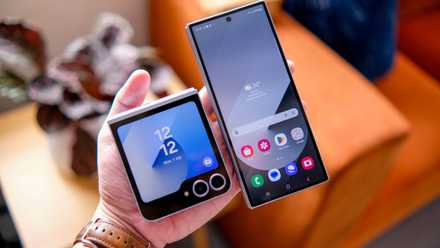


There is a toggle, deep inside your phone’s Settings menu, that promises something that sounds almost too good to be true. This toggle gives you extra RAM for free, using the internal storage your phone already has. Consider it a perk since it doesn’t involve any hardware changes. On my Samsung Galaxy S26 Ultra, it is called RAM Plus. While my phone already has 12GB of RAM, the first time I saw RAM Plus, I cranked it up to max without thinking twice.
More RAM means a faster phone, right? Sadly, that is not the right way to put it. I did a lot of research into why brands are including this type of virtual RAM extender setting, and I have answers that might help you decide whether you really need to use it.
It is not actually RAM that you are getting
Your phone is borrowing space from your storage

Every app that you open on your phone needs somewhere to sit while you are using it. That space is RAM. It is fast and ensures that the moment you click on the app, it opens; when you minimize it, it stays there; and when you come back, it loads instantly.
Once the RAM fills up, Android starts closing apps that you aren’t actively using to make room for new ones. This is the reason you will see some apps start from scratch even though you launched them from your Recent apps list.
Samsung RAM Plus, also known as Memory Extension on Xiaomi phones or RAM Boost on Motorola devices, allocates extra RAM by slicing off a portion of your internal storage and letting Android treat it as backup memory.
When physical RAM runs out, the system pushes less urgent background data into that reserved storage space instead of closing the app outright. According to Samsung, the RAM Plus option is meant to let you keep more apps open and running in the background and launch them faster when needed.
Do note that this isn’t a stock Android feature and doesn’t come built into the OS. Major smartphone brands build this feature and add their own version because storage is far cheaper than including actual RAM. This way, they can advertise larger memory numbers on the box.
Enabling/disabling RAM Plus is easy
But you have to navigate through some steps
If you have a Samsung Galaxy phone, here is how to convert your extra internal storage into virtual RAM by enabling the RAM Plus feature.
- Open Settings.
- Scroll down and tap on Device care.
- Tap on Memory.
- Select RAM Plus.
- You will have different options: 2GB, 4GB, 6GB, 8GB, and 12GB. Choose how much storage to allocate as virtual RAM, or turn it off if you don’t want to use this feature.
- Restart your phone for the changes to take effect.
If you have a Xiaomi phone, here is how to enable or disable the Memory Extension feature:
- Go to Settings.
- Tap on Additional settings.
- Under Special features, tap on Memory extension.
- Choose from the 1GB, 2GB, and 4GB options or turn it off if you don’t want to use it.
- Reboot the device to apply the changes.
For those who have a Motorola phone, here’s what you need to do:
- Tap on Settings.
- Select System.
- Tap on Performance.
- Toggle on or off Ram Boost.
While the feature name may differ across devices, the function is the same — turn your internal storage into virtual RAM.
Virtual memory is good, but not for every phone
It is suitable for a budget or midrange phone running low on physical memory

If you have a phone that has only 4GB or 6GB of RAM, then based on the current scenario of how heavy everyday apps and games have become, the physical memory fills up fast. You will start experiencing glitches and lag when performing even basic tasks, such as switching between apps.
On phones like this, you can give your OS extra breathing room and help apps load faster. But there is a catch, and it all comes down to what kind of storage your phone uses. Faster UFS storage handles this kind of task well, far better than older eMMC storage does.
Now, budget and mid-range phones don’t come with faster storage. This means that even after allocating your internal storage as virtual RAM, you won’t notice much difference. If you really want to make your budget or mid-range phone faster, you will have to look beyond virtual RAM.
Top-end phones don’t need more RAM
They are already fast and have enough to play with

This is where virtual RAM becomes counterintuitive. If you have a premium, high-end phone with 8GB or 12GB of RAM, you likely have more than enough room for everyday use and even gaming. RAM Plus only starts working against you in this situation because, even though the storage is faster, it is still slower than the real RAM available in your phone.
When the system stores app data in virtual memory, it takes longer to reload it than it would if the app had simply reloaded. This is more noticeable on premium phones since they are already fast.
We tested this directly on a Galaxy S25 Ultra and came to the conclusion that keeping RAM Plus enabled on a phone with plenty of RAM tends to make app switching feel less snappy and less smooth. Another one of our writers came to the same conclusion after testing it on her own Galaxy S24 Ultra, eventually choosing to turn off RAM Plus entirely because it made multitasking feel less consistent.
In my testing as well, I could resonate with our writers and can tell you that Android is already pretty good at managing memory on its own. It keeps a track of the apps that you use most and prioritizes them over others for faster loading.
Turning on features like RAM Plus on an already capable device can interfere with the built-in intelligence rather than support it.
Is it for you?
As already said, if you have a mid-range or budget phone with 4GB or 6GB of RAM and you are constantly running into apps reloading, it is worth giving RAM Plus (or whatever your brand calls it) a shot. For users with high-end phones, you are probably good with what the company has provided you in physical form, and this would just be a drop in the ocean. Though do note that there is no universal right here, which is exactly why this feature causes so much confusion. It genuinely helps on some phones and does nothing on others.


8.5/10
- SoC
-
Snapdragon 8 Elite Gen 5
- Display
-
6.9-inch Dynamic Super AMOLED 2X
- RAM
-
12 or 16 GB
- Storage
-
256GB, 512GB, or 1TB
The Samsung Galaxy S26 Ultra isn’t a massive leap in specs compared to the previous generation Samsung Galaxy S25 Ultra, but it boasts improvements in every aspect. The major differentiators are two features that will appeal to power users and content creators, called Privacy Display and Horizontal Lock.


