

Call me old-school, but I prefer being able to access my photo library from files and folders on my computer much more than through a web app. Years ago, Google Photos could be linked to Google Drive, but that got killed. Later, I moved over to Immich, and once again, unless I go digging into my NAS over SMB, file access is something that I’d forgotten about. RAW file and folder access is convenient when you just want to grab an image, edit a RAW file, or upload something quickly, but increasingly, if you want to use modern self-hosted tools, the world appears to be moving away from it.
Recently, I came across an open-source companion for Immich called Findich that mounts my self-hosted photo library directly in the macOS Finder. So far, I have been accessing Immich through my web browser, but this companion app lets me connect my library to my computer, so now it works like any other folder on my Mac. The photos remain completely on my server, but I can browse them and open them as if they were local files. This completely changes how I interact with my own photo library.
Findich brings my entire Immich library into Finder
I no longer have to export photos before I use them

Immich is excellent at what it does. Among the multitude of search options it offers, you can easily find photos by place, people, dates, or even file names. Unfortunately, that entire experience is tied to the web browser, and if you actually want to use that photograph, you then have to export it to your desktop.
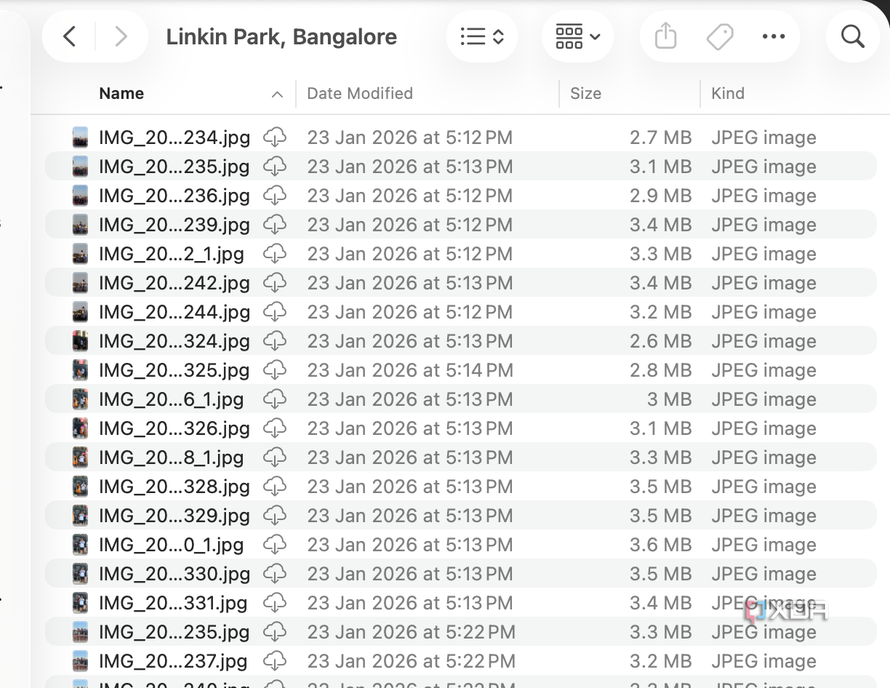
Findich removes that separation, and setting it up is extremely easy. All you need is your Immich URL and an API key. After connecting it to your Immich server, the entire library becomes available through Finder, and not just that — everything from albums to people, locations, and timeline views all appear as folders in your Finder. You can browse these just like any other directory on your computer, and Findich translates API calls on the fly.
It’s a very simple app that solves a straightforward access problem. If you’re editing photographs, you can just browse your Finder library and drag-and-drop an image into your photo editor of choice, without going through the roundabout process of opening the image in Immich, exporting it, and then importing it into your photo editor. Similarly, if you need to send images via an email app, you can just attach them directly from the Finder instead of using the aforementioned export process.
Moreover, Findich ensures that the NAS still remains your source of truth and primary storage location. Findich doesn’t create another set of copies. Instead, it streams these files on the fly, just like OneDrive, and you can clear out this cache with one click if needed.
Simple at its core, but surprisingly capable
Smart organization and seamless access

Credit: 
Credit: 
Credit: 
Credit: 
Credit:




Credit: 
Credit: 
Credit: 
Credit: 
Credit:
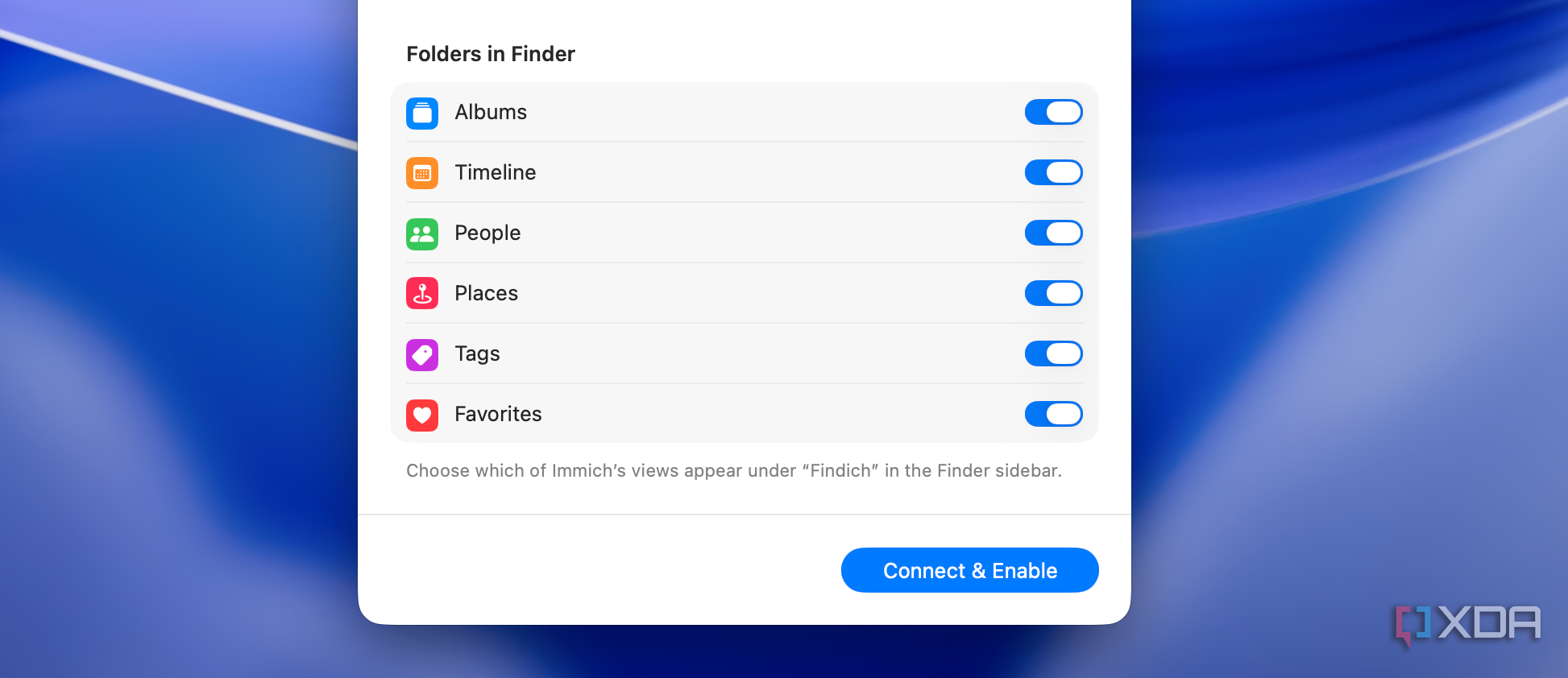
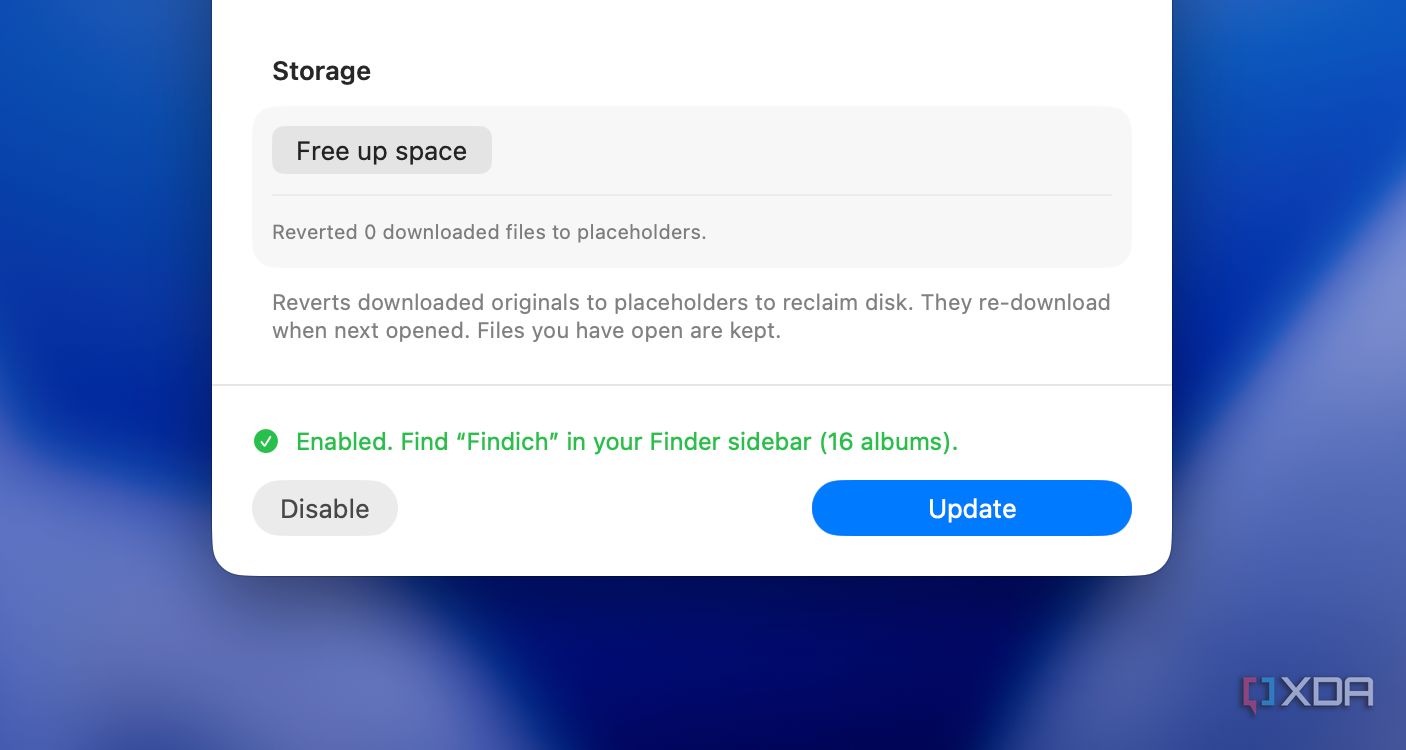
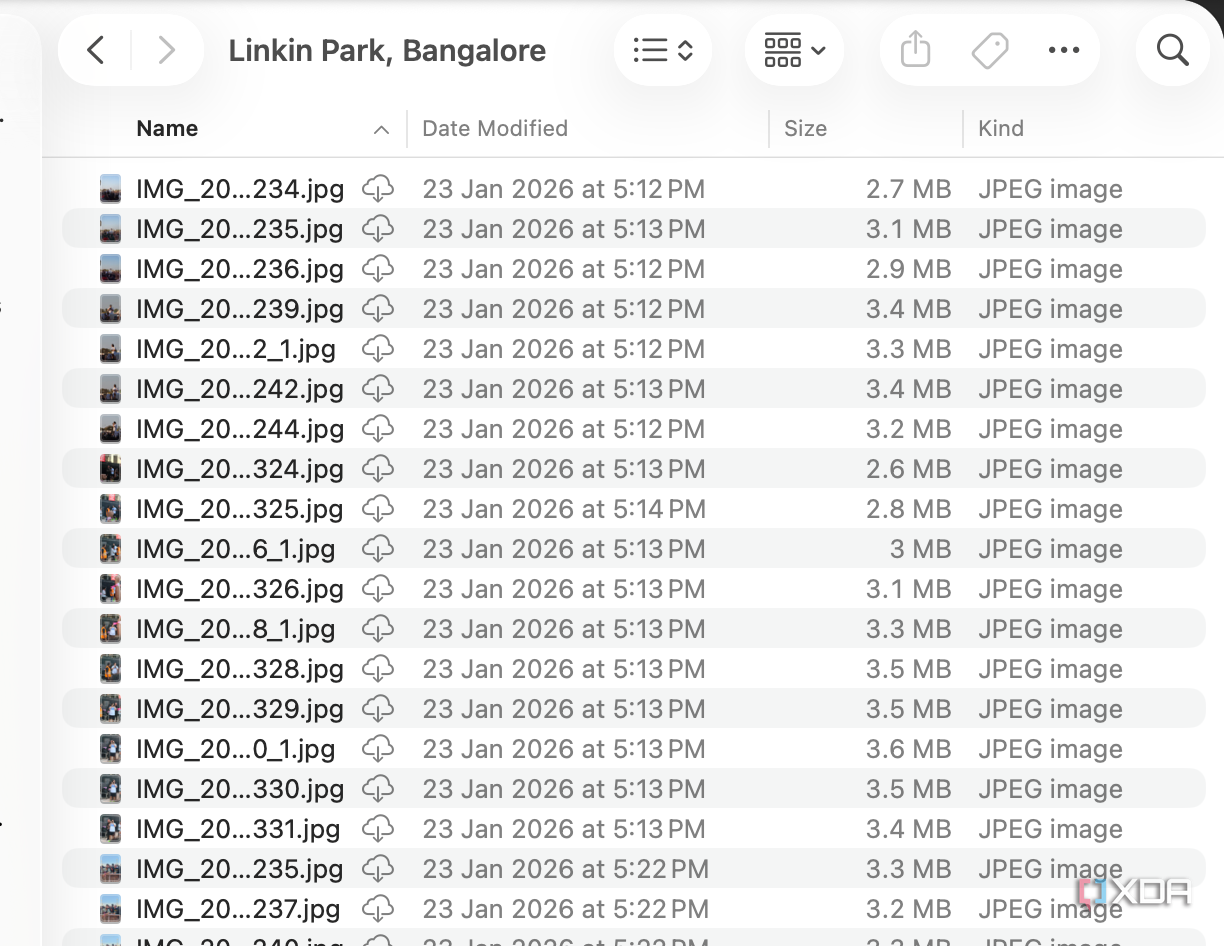
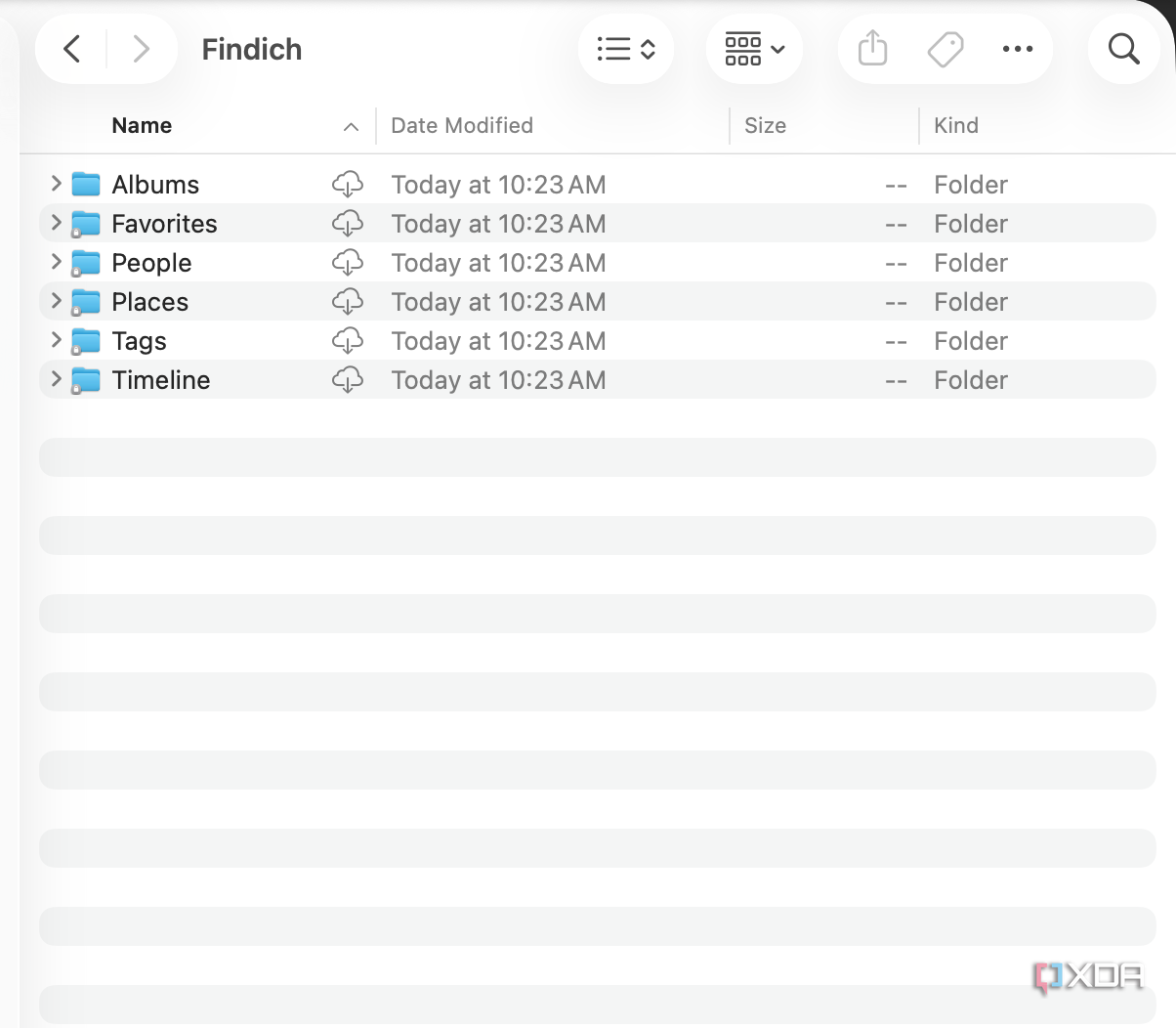
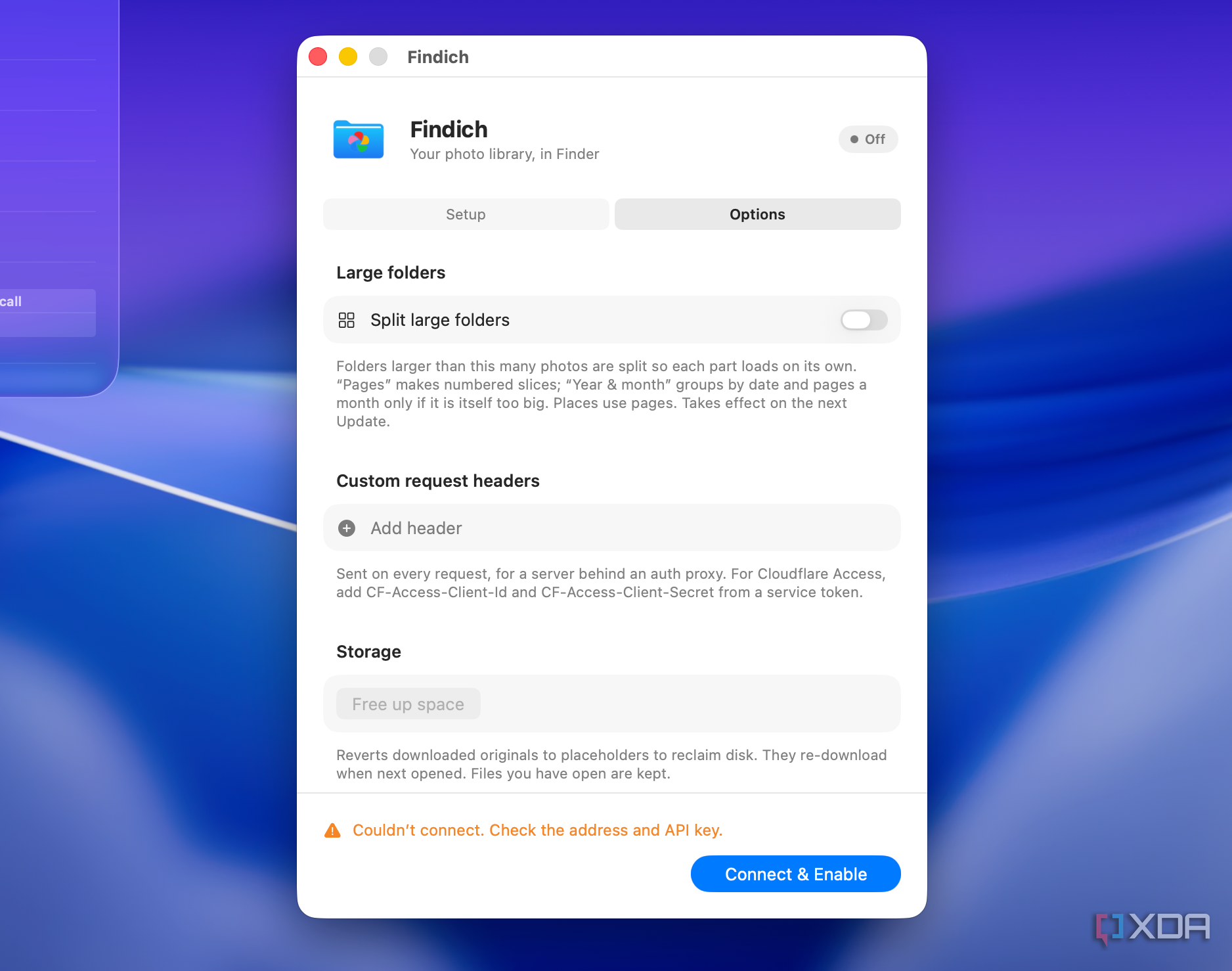
On the face of it, Findich is a very simple app, but there are a few interesting nuances here to keep an eye out for, as I mentioned earlier. Everything from face data to location data, albums, and more gets its own folder in Finder. This gives you a degree of organization even before you dive into the full timeline view. To improve performance, the app can also split large folders so that you don’t bog down your network and system by streaming thousands of files in one go.
Elsewhere, you can upload files to your Immich photo library directly through the Finder. Findich handles all the processing in the backend. What I really appreciate about the tool is that it provides a measure of protection against inadvertent deletions. Sure, you can delete a photo from your image photo library, but instead of completely removing it, the app sends it to the trash folder in Immich, which gives you 30 days to recover the file if you need to. That’s smart.
Moreover, the developer has also factored in users accessing their image instance remotely. If you’re using something like a CloudFlare reverse proxy, you can provide the details in the settings, and they’ll carry through. You can access your photo library as a folder on your computer even when you’re not on your own network.
I’ve spent a lot of time organizing my photos into albums, and having access to them via the Finder has made a measurable improvement in my image-viewing experience. This is mostly because it lets me move files quickly to Lightroom for a quick edit or two without having to jump back into the web-based interface. No matter how you use photos, Findich makes casual browsing much more accessible and, dare I say, enjoyable.
A simple integration for Immich that dramatically eases access
Immich is the center of my photo library, and, generally speaking, the web-based experience has been plenty good, but I’m always open to options that further enhance it. Findich is one of the few apps that has done that without a doubt. By exposing my photo library directly to Finder, Findich has made using those photographs much simpler than jumping back into the web interface multiple times a day. This open-source app is an easy recommendation for any Immich user.
Findich — This open-source tool lets you mount your Immich library directly to your Mac’s Finder as a native folder.