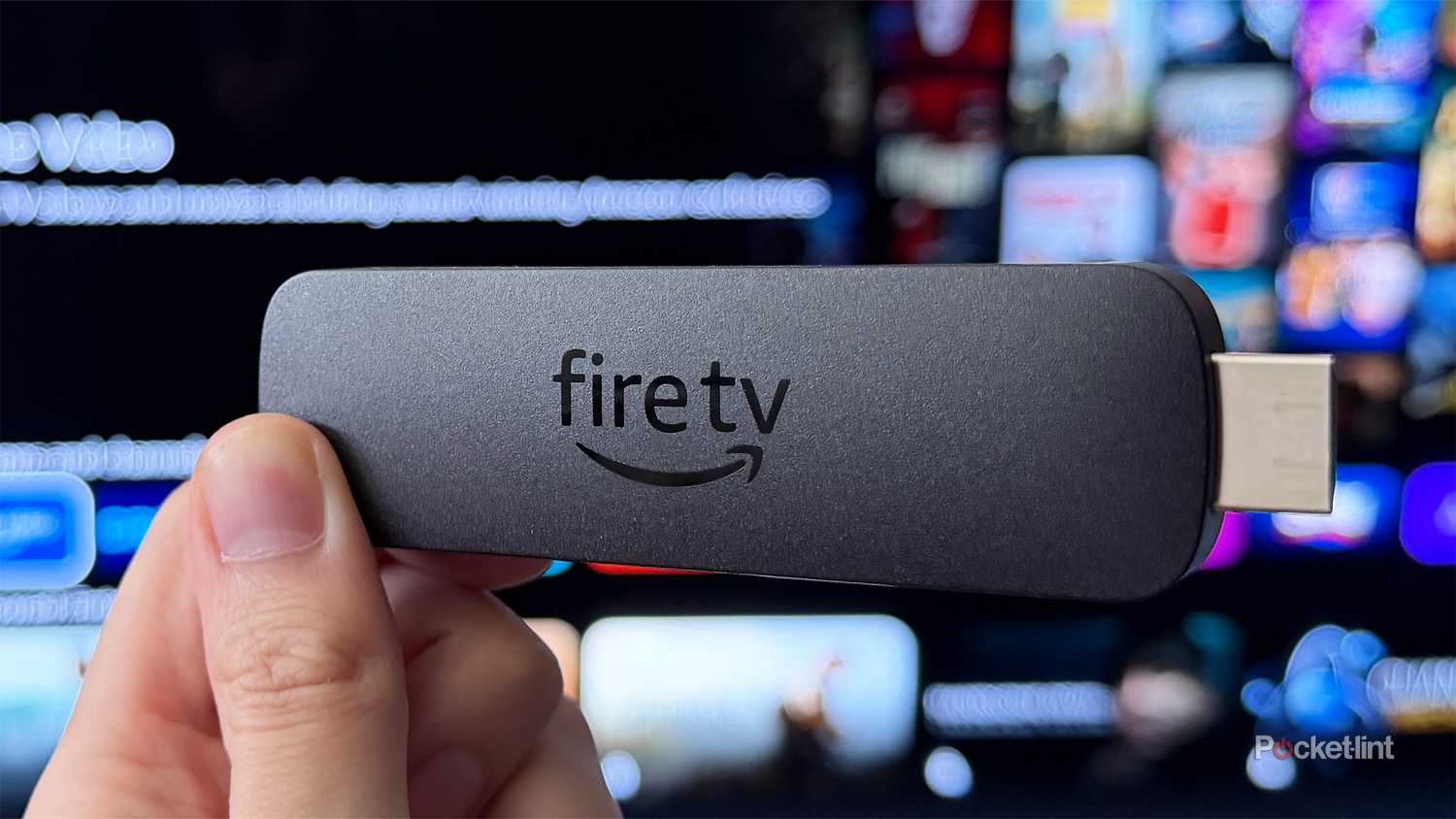



When I first got my LG C5 TV last year, I mostly ignored the apps that came pre-installed on it. Don’t get me wrong, they’re useful for a lot of people, but since I have a Fire TV Stick 4K Max and a PS5, I use those for all my streaming needs. Plus, my PS5 doubles as my 4K Ultra HD Blu-ray player, so I’ve never really felt the need to use my TV’s built-in apps like Netflix, Apple TV, Disney+, and others.
Because of that, I’ve always just scrolled past the row of apps on my LG TV’s home screen without giving them a second thought. I already have other devices that deliver a better streaming experience, so all I really need my TV to be is a great display. In that regard, my LG C5 has exceeded my expectations. Its OLED panel, vibrant colors, and high refresh rate have been everything I was hoping for.
That said, despite largely ignoring my LG TV’s built-in apps, I recently stumbled upon one that has actually impressed me, and that I genuinely regret not trying sooner. The funny thing is, it has absolutely nothing to do with streaming. Instead, it’s designed for browsing and watching your own local media collection, and it’s none other than LG’s Media Player app.
You can do more than just stream on your TV

While I was recently testing the USB ports on my LG TV, such as connecting an Ethernet adapter for faster wired networking speeds, I also decided to plug in an old portable hard drive I had lying around that still had a few movies stored on it.
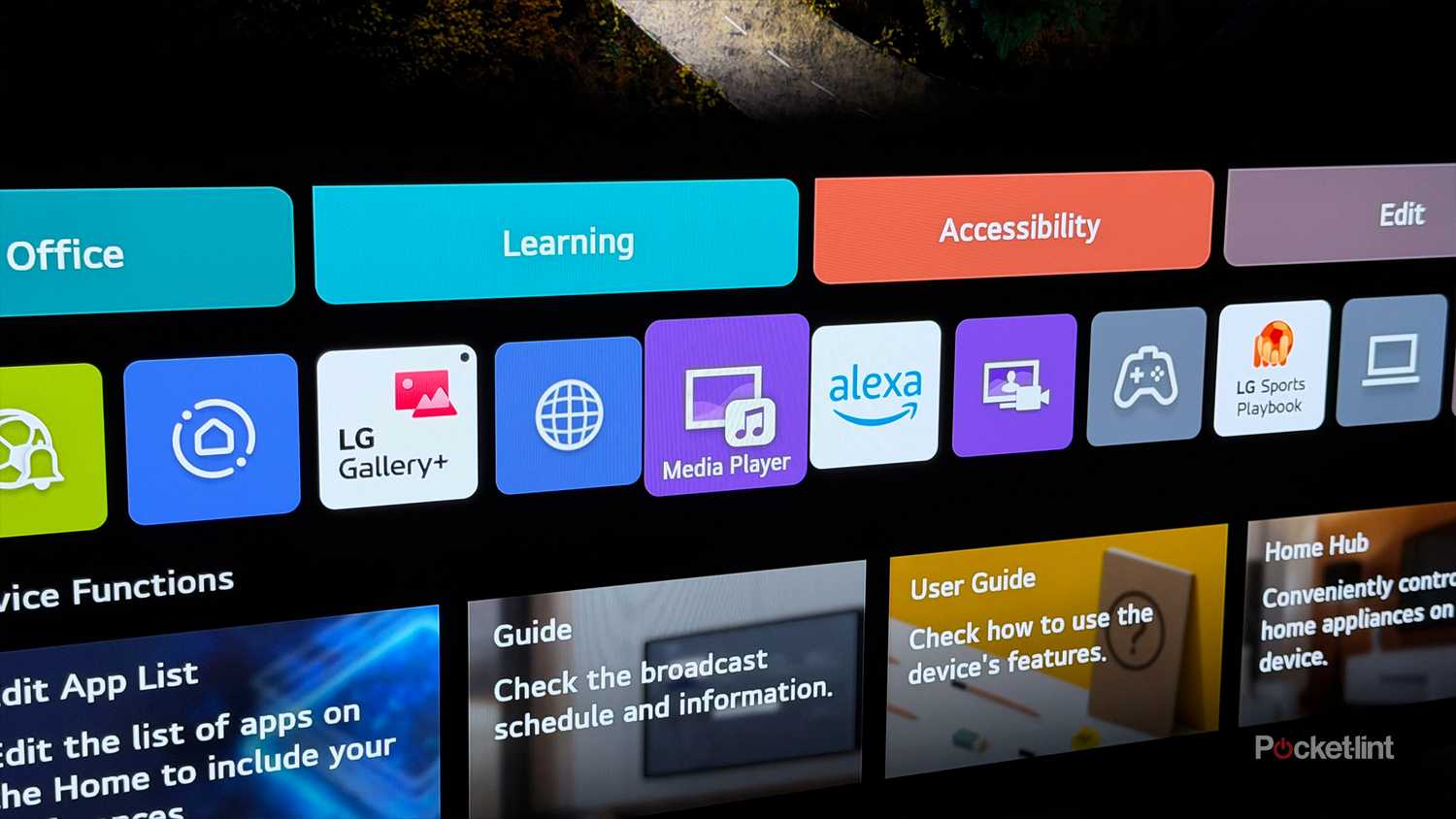
I’ve always read about people connecting USB drives to their TVs, but I’d never actually tried it myself. So I decided it was time to finally give it a go. As soon as I plugged my hard drive into my LG TV, it worked instantly, and the TV automatically prompted me to open LG’s Media Player app. Alternatively, you can find the app in the app rows on your TV’s home screen.
The app itself is refreshingly straightforward. It lets you select the connected drive, browse all the files on it, and open whatever you want, whether it’s family photos you’d like to display on the big screen or movies and shows you’ve got stored away that you’d like to watch.

What impressed me most, though, was how well my LG TV handled different file formats. I have a mix of MP4 and MKV files on the drive, and the Media Player app played every one of them without any issues. There was no lag, no stuttering, and no audio issues. I was able to watch the despecialized versions of Star Wars and The Empire Strikes Back I have without a hitch, and it really opened my eyes to just how useful this app is to have on my TV.
I’d been considering setting up a Plex or Jellyfin server to easily watch local media on my TV, or even connecting my PC to it and using VLC, but I think this route is a lot easier. I can just plug my hard drive directly into my LG TV’s USB port and use the Media Player app to watch any local media I have saved within seconds, and it’s something anyone can do quite easily.
There are some limitations
Not all USB devices will work with LG Media Player

Despite my experience with LG’s Media Player being generally smooth, there are a few limitations worth keeping in mind.
For starters, it only supports USB drives formatted as FAT32 or NTFS. Most USB sticks and portable hard drives use one of those file systems, so it probably won’t be an issue for most people. However, if your drive is formatted differently, it won’t work. For example, I have a portable SSD formatted as exFAT, and my LG TV couldn’t read it through the Media Player app.
LG also recommends using USB sticks with 32GB or less of storage and USB hard drives with capacities of up to 2TB.
As for file formats, I only tested MP4 and MKV files, but the app also supports several others, including MP3, WMV, and AVI. Just keep in mind that supported formats vary depending on how old your TV is and which version of webOS it’s running. My LG C5 runs webOS 25, so it has no trouble handling modern formats. You can check which version of webOS your TV is running by going to Settings > Support > TV Information and looking for webOS TV Version. LG also provides a full list of supported file formats for each version of webOS on its website.
Those technical limitations aside, though, if you have a relatively modern LG TV and a USB stick or portable hard drive, there’s a good chance you’ll be able to browse and play your files without any issues. It’s an experience I’d definitely recommend trying, especially if you’ve never watched local media on your TV before. It’s a nice break from streaming, and because it supports modern file formats, you don’t have to sacrifice quality either.
Overall, I completely ignored most of the apps on my LG TV when I first got it. But after discovering the Media Player, it’s become one of the few built-in apps I actually use, and I’ll definitely be coming back to it whenever I want a quick and easy way to watch local media.

- Display Size
-
42, 48, 55, 65, 77, or 83 inches
- Operating System
-
webOS
- Display Type
-
OLED