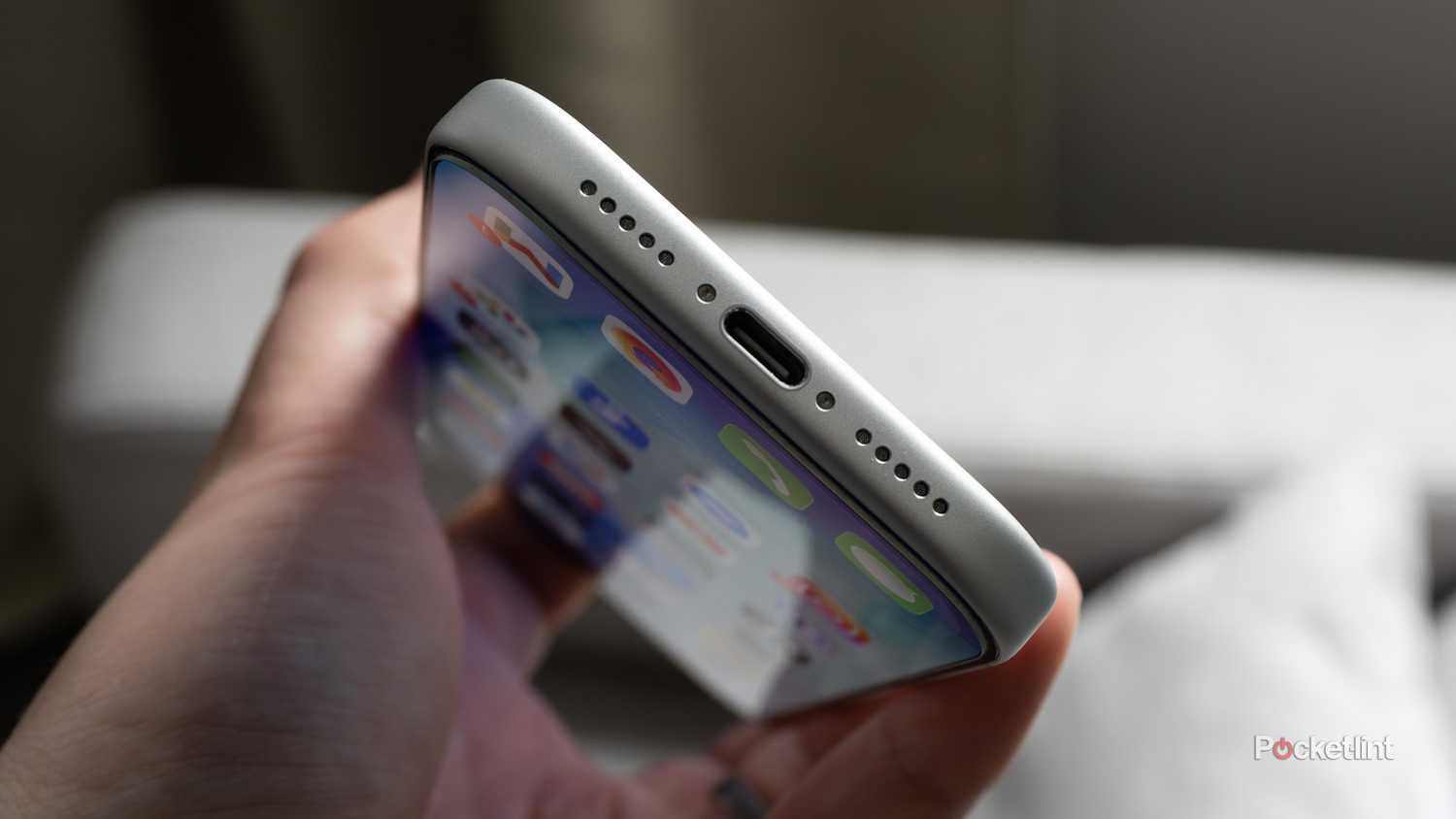


It’s unfair but true: no matter how new and powerful a computer or other tech device we buy, it inevitably ends up in a digital graveyard. Most of us likely have a drawer full of tech — namely, phones that became obsolete and were replaced by the latest and greatest shiny new toy. Luckily, there is a lot you can still do with an old Android device to breathe new life into it, similar to repurposing a PC.
Sometimes your old Roku device dies or gets so old that you can no longer update it, so it’s no good. In cases like that, you can certainly buy another, or go a geekier route and repurpose an old Android phone you thought was dead into a streaming media device. I did that with an old Android phone and brought it back to life to replace my aging Roku, and I’m glad I did. Sure, it took a few steps, but it wasn’t anything too difficult.
Choosing an old Android phone to replace a Roku
It depends on what you need to do

One of the first things you will need to do is try to find an old phone with the best specs. For an “old phone,” I had the choice between the OnePlus 6T (an 8-year-old device) and the Samsung Galaxy A51. I went with the OnePlus due to its Snapdragon 845 processor, 6GB of RAM, and 128GB of storage. I could get by with the Galaxy, but its specs are modest compared to it.
Also, when considering an old phone, decide whether you want to connect it to your TV with a USB-C-to-HDMI cable. Older phones, like my OnePlus, don’t support Mobile High-Definition Link (MHL). Older and budget Android phones don’t support video output, so check the phone’s specs or search the Play Store for a USB-C-to-HDMI checker app. If your phone supports MHL, it’s possible to pair a compatible Bluetooth remote to navigate the phone’s UI — turning the Android phone into a traditional set-top box. I can only get the video to my TV via wireless casting or mirroring, not via a wired connection. So, I turned mine into a mobile-style Roku I can put in my pocket.
I revived a cheap Android tablet by turning it into a Home Assistant control panel
Your old Android tablet is a better Home Assistant panel than anything you can buy
Getting your phone ready
A factory reset helps
The next thing I did was factory reset my old phone. Resetting the phone clears all the junk and gives it a clean slate to start working as a Roku replacement. If you haven’t factory reset your Android phone before (a good practice for older phones), the performance bump alone could be worth it. If you can’t find the reset settings, check the manufacturer’s website for instructions on how to perform the reset manually.
Once the reset is complete, follow the device’s on-screen instructions to set it up. Other than connecting the phone to my Wi-Fi network, I used a minimalist setup. I skipped turning on the manufacturer’s extra bloat (a tough task on Samsung phones unless you can unlock the bootloader) and Google’s extras as much as possible. I tried to keep the interface straightforward as well. I also removed any unnecessary apps. For instance, Google Maps, Wallet, and Calculator don’t need to be on a streaming media device.
Once everything was ready to go, I made sure to install all the media apps I wanted on Roku, including Netflix, Paramount, local news apps, Hulu, and Plex for my collection of ripped DVDs and Blu-rays. I also disabled notifications to minimize constant activity on the phone.
Replacing my Roku with an old Android phone
A phone as a streaming remote

I started by opening the media apps, choosing what I wanted to watch, and tapping the Cast button. If an individual app didn’t support casting, I chose to mirror the phone’s screen from the quick settings menu.
Organizing the app icons I used most often on my phone was fine, but I wanted a cleaner, more distinctive look for the media apps on my Android phone to make them easier to use. There are plenty of launchers out there; I’ve used the popular Niagara and customized it a bit for a more Roku-like feel, and selected only the media apps.
Using a Roku-like launcher with tiles helped me avoid making the phone look like a phone and instead made it look more like a mobile Roku. If I wanted a phone UI, I would use my phone every day and skip this step. But this gives the phone a home screen with large app tiles instead of the typical menu system. One I like is Launcher 10, a free app that mimics Windows Phone with tiles, which, like others, I add only apps for my media apps — turning my phone into a Roku-like experience.
I encourage experimenting with different launchers to get the best Roku-like experience you can. Additionally, if you have an Android TV or Google TV, you can use home screen TV launchers like FLauncher, Kyu, or Projectivity Launcher, which can provide a more Roku-like experience by mimicking the grid layout of Roku TV.
I got rid of my Fire TV Stick’s annoying ads with this launcher
Wolf Launcher offers a stripped-back, simplified Fire TV Stick home screen.
Replacing your Roku with an Android phone
It’s important to be reasonable about what the “old” in your old phone means. For instance, you will need a fairly modern phone to connect it to your TV via USB-C-to-HDMI. I tried a Pixel 7, and it doesn’t support MHL. Also, don’t expect any reasonable performance from a 2010 HTC Evo 4G, although I’m sure an online enthusiast will prove me wrong.
Still, there’s no reason to let your old Android phone waste away or end up in a landfill when there are ways to reuse it. Replacing an old or dying Roku might be the right fit. While the Roku-style app launchers seem worth trying, they weren’t supported on my old phone, according to the Play Store. However, I’m sure I’ll eventually hunt down the APKs to see if sideloading works.