



Text snippets are one of the easiest ways to save time in your day-to-day life. Essentially, you can type a very short text string and have it automatically expand to a piece of text that’s as large as you want. It can save a ton of time with repetitive bits of information you may use throughout the day, like your address, email, and so on.
This requires a program called a text expander, but a problem with this is that if you have multiple devices, you can’t easily keep the same settings for each one. Or, you might think you need a cloud account or something to make it work. But I’ve set up a solution that fixes this, and it relies on two free, locally-run tools: Espanso and SyncThing.
Espanso is the best text expander
Plus it works on everything
I’ve talked about Espanso recently, but it bears repeating that it’s easily one of the best text expanders out there. It’s a veyr lightweight tool that lets you easily create shortcuts that match a short command to a longer piece of text, and it even gives you a search bar you can summon at any point in case you need to grab a piece of text but you’ve forgotten the exact shortcut for it.
Aside rom being very compact and light, Espanso is also easy to configure, using a YAML configuration file that’s easy enough to read and add new matches to. It doesn’t have to be just simple text, either; you can run some terminal commands this way, too, which enables some interesting possibilities, as you can see in the official hub for community-created rules.

6 reasons Espanso is the best text expander anyone can use
Espanso is a lot more powerful than it seems at first glance.
Those YAML configuration files have another benefit: not only is Espanso a cross-platform app on Windows, macOS, and Linux, but the configuration files are also entirely compatible across those platforms. You could set up your desired rules and then copy the file containing them to other devices. But doing that manually would be cumbersome, especially as you add more matches to the file over time.
Syncthing handles the rest
Keep it all in sync

Enter Syncthing, a simple tool that allows you to sync content across different devices without using the cloud. Syncthing links your devices to each other directly, and it then allows you to sync the content of a specific folder between the two devices. There’s no server on the internet holding your data, it’s sent directly between your computers when they’re available.
This alone might be enough for you in some cases: simply install Syncthing on your computers, link the devices, and add the same shared folder to each one. However, a downside of this is that if the two devices are never (or rarely) on at the same time, you won’t be able to sync the configuration content between them in a reliable way.

That’s where self-hosting comes into the fray. Syncthing is also available to deploy on your NAS or home lab (TrueNAS has it listed on its app repository), giving you a central server that both of your devices can always sync to. It’s still entirely private and yours, but you now have an endpoint that can always store the latest changes to your files coming from any of your connected devices. You don’t need Espanso itself to be on your NAS, either, just syncing the configuration files is enough.
Just sync the right folder
It’s easy to get started
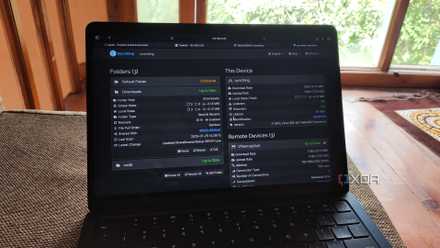
Once you’ve installed Syncthing on all the devices you want to keep in sync, you’ll need to access the web dashboard on all of them and start linking devices. If you’re on the same network, you may see your other devices suggested, making it easier to connect them more quickly. Otherwise, you might need to click the Identification string under This device, then go to your other PC and click Add another device and enter the full ID to link the two devices. When you confirm, your original device will receive a linking request you need to approve. You may have to repeat this if you have multiple devices.
Once all your devices are linked, use any one of them to create a new shared folder, give it whatever name you prefer and set the path to wherever your Espanso configuration is stored. You can find this out by opening a terminal window and using the command espanso path, which will return the config folder path in the first line. Still in the creation dialog, use the Sharing tab to check all the devices you want that folder to be synced to.
I self-host Syncthing to sync files between my PC, Mac, NAS, and other devices
Syncthing is a neat utility when you want multi-directional file synchronization for your home lab
Save your changes and your other devices should see a notification on the Syncthing dashboard asking you to confirm you want to enable the share, and when you accept, you can choose which folder to sync to on that device. On the devices that are running Espanso, just point to the configuration folder (again, the espanso path command can help). If you’re using a NAS as a sync server, you might want to create a dedicated new folder just to hold those sync files and then point to it.
That’s about all you need to do. It looks more complicated than it really is, and once you’ve set it up, you never have to worry about moving the configuration between devices manually again. I set this up between my main Mac Mini and one of my laptops, and it works pretty much flawlessly. Because I had already modified the config file on one of my devices, Syncthing kept a backup of the duplicate, so I had the option to choose which one to keep.
Saving time on all your devices
Text expanders are great ways to save time, but you can take that much further when you keep your expansion rules in sync across all your devices. Espanso and Syncthing allow you to do exactly that, giving you a solution that works on all your devices and stays in sync while keeping all your data private, only stored on your devices. It doesn’t get much better than that.