


As a productivity enthusiast, I have tried almost every productivity app out there, from the big names to open source alternatives.
Between my task manager, calendar, and note-taking app, I have enough places to keep track of work.
Lately, I’ve realized that my problem starts a bit earlier in the information organization phase. Everything that I’m researching begins with a pile of information.
For example, for this article I did a deep dive into Google Drive Projects. I usually dig through GitHub repositories, documentation, screenshots, PDFs, and my own notes and outlines.
By the time I get around to writing the article, I’ve collected material from many places, and sifting through them becomes a bit of an issue, especially if the information has been sitting around for a couple of days.
That’s where Google Drive projects come in.
Building your own personal knowledge base

Instead of treating Drive as another place to dump files, I use Google Drive projects as a dedicated workspace for everything that I’m working on.
It gives Gemini a focused set of documents to work with, remembers previous conversations, and lets me keep adding new material as I add to the research.
It’s not a replacement for traditional productivity apps, but it solves a problem that none of those productivity apps do and helps keep all this disparate context together.
Be it writing an article or doing in-depth research for my client work, I’ve realized that most of my work happens over multiple days.
Most of this work starts with in-depth research, gathering prior resources, and fleshing out data.
The writing is the smallest part of it. Usually, what happens is that I’ve accumulated a surprising amount of data.
That’s where Google Drive projects come in handy.
When I begin researching a topic, I create a new project and toss everything into it: be it old press releases, documentation, setup guides, my own notes, even screenshots.
You can even add Google Docs to that same workspace.
The best part is that these files don’t need to be moved into a new folder structure. You attach them to the project and continue working.
Google Drive projects build continuity irrespective of where these files are placed. Think of it as an advanced tagging structure or NotebookLM without the necessity of adding files to a notebook.
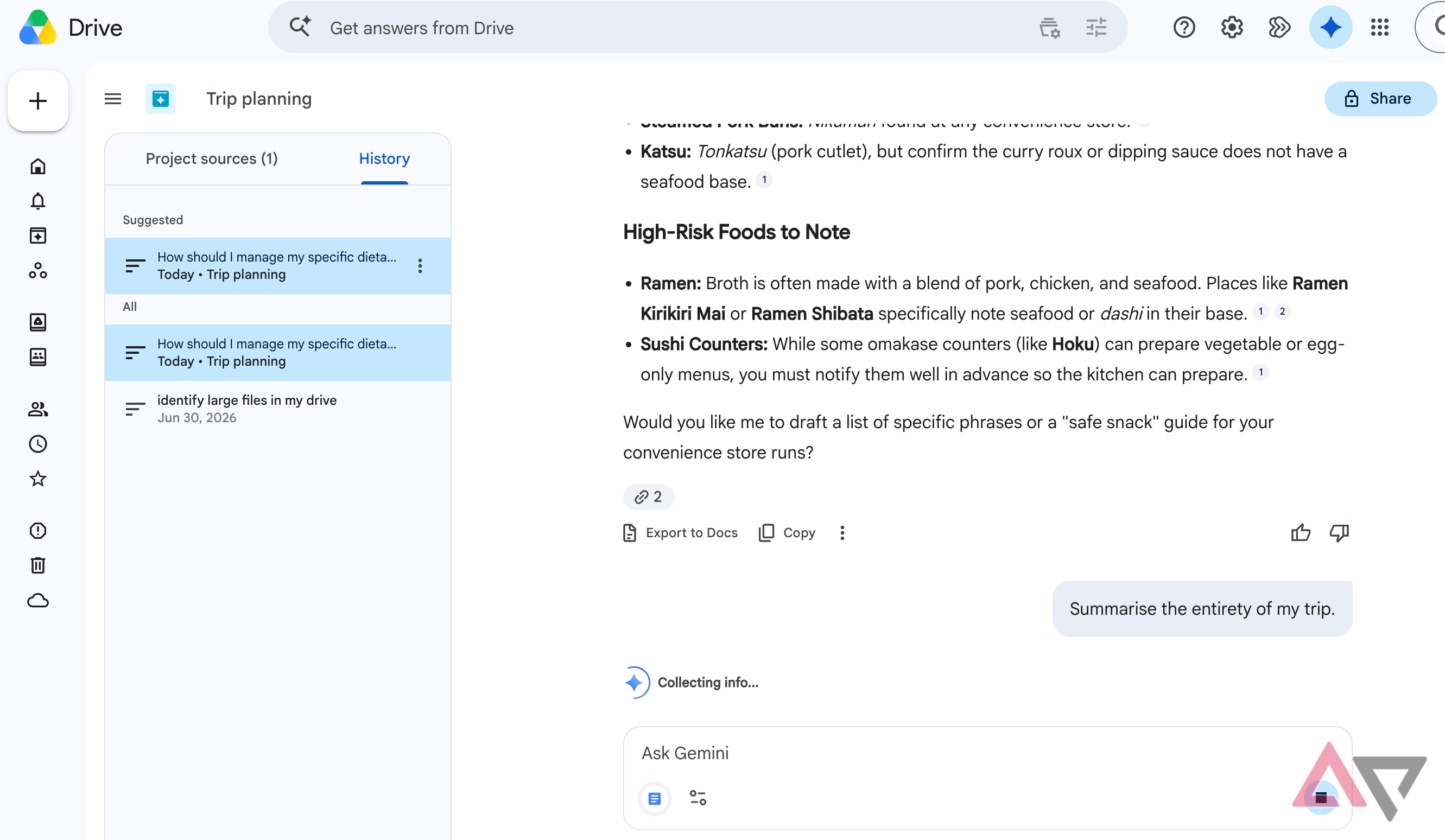
If I stopped working halfway through a piece, I don’t have to remember what I was thinking when I returned a few days later. My conversation with Gemini is right there alongside every document that I’ve attached to the project.
I can ask follow-up questions or for a summary of what we were working on instead of starting over.
Lately, I’ve started keeping long-running projects for activities that require long-term research.
For an upcoming trip, I’ve been attaching screenshots of my personal notes on places I want to visit and hotel reservations to that same Google Drive project.
It effectively becomes a research library, and I can come back and query that project.
Stop digging through folders and emails
Adding research from Google Drive and Gmail takes seconds

Credit: 
Credit: Credit: 
Credit: Credit: Credit: Credit: Credit:


Credit: 
Credit: 
Credit: 
Credit: 
Credit: 
Credit: 
Credit: 
Credit:
We’ve all been there. We collect a copious amount of data in folders and files and emails, but when it comes time to find or sift through that information, we end up wasting a lot of time.
Who wants to open half a dozen files to find that exact piece of information you were looking for?
The cool thing about using Google Drive Projects is that you don’t have to do all of that manual searching anymore.
Adding files to a Google Drive project is extremely easy as well.
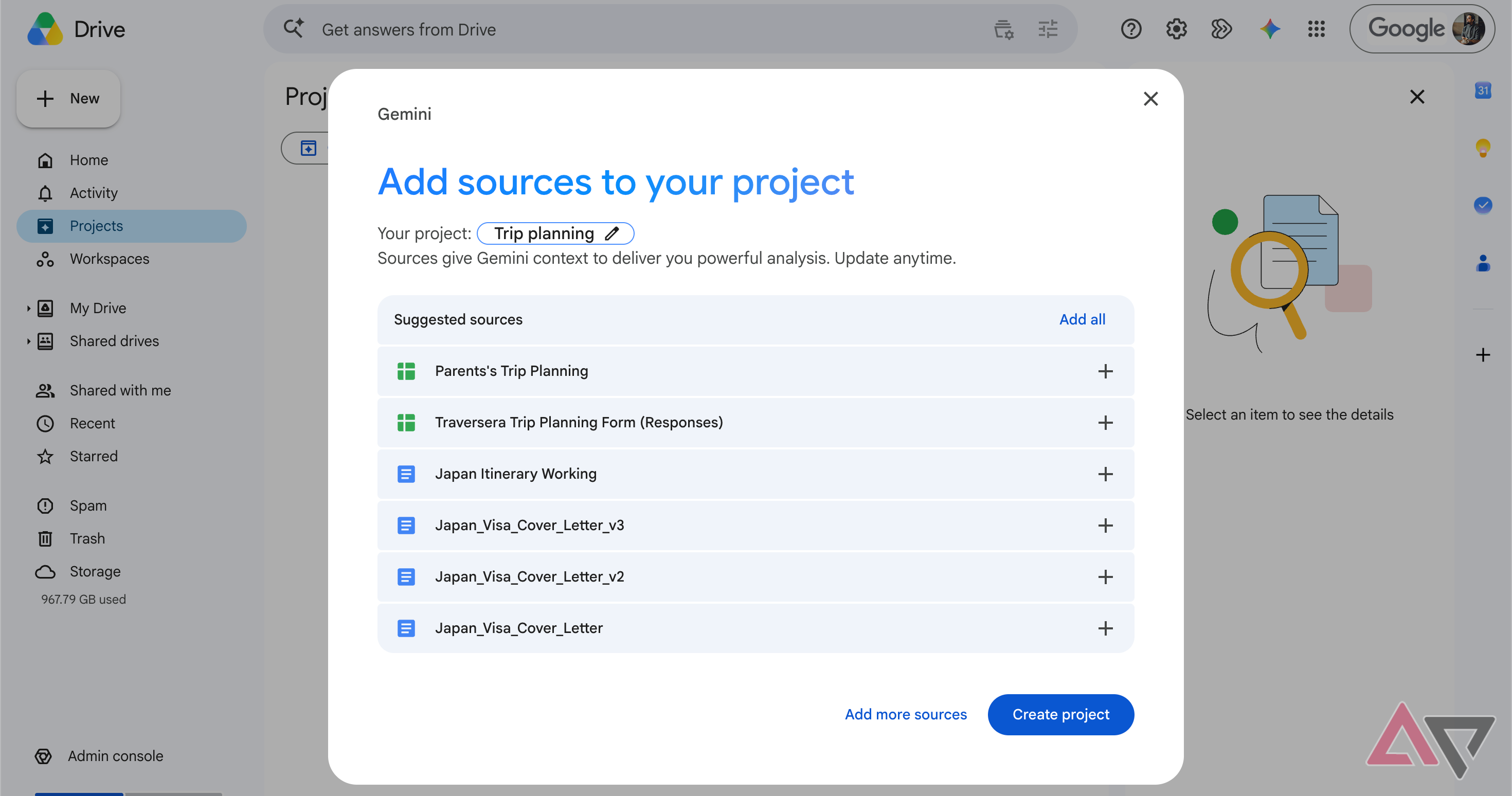
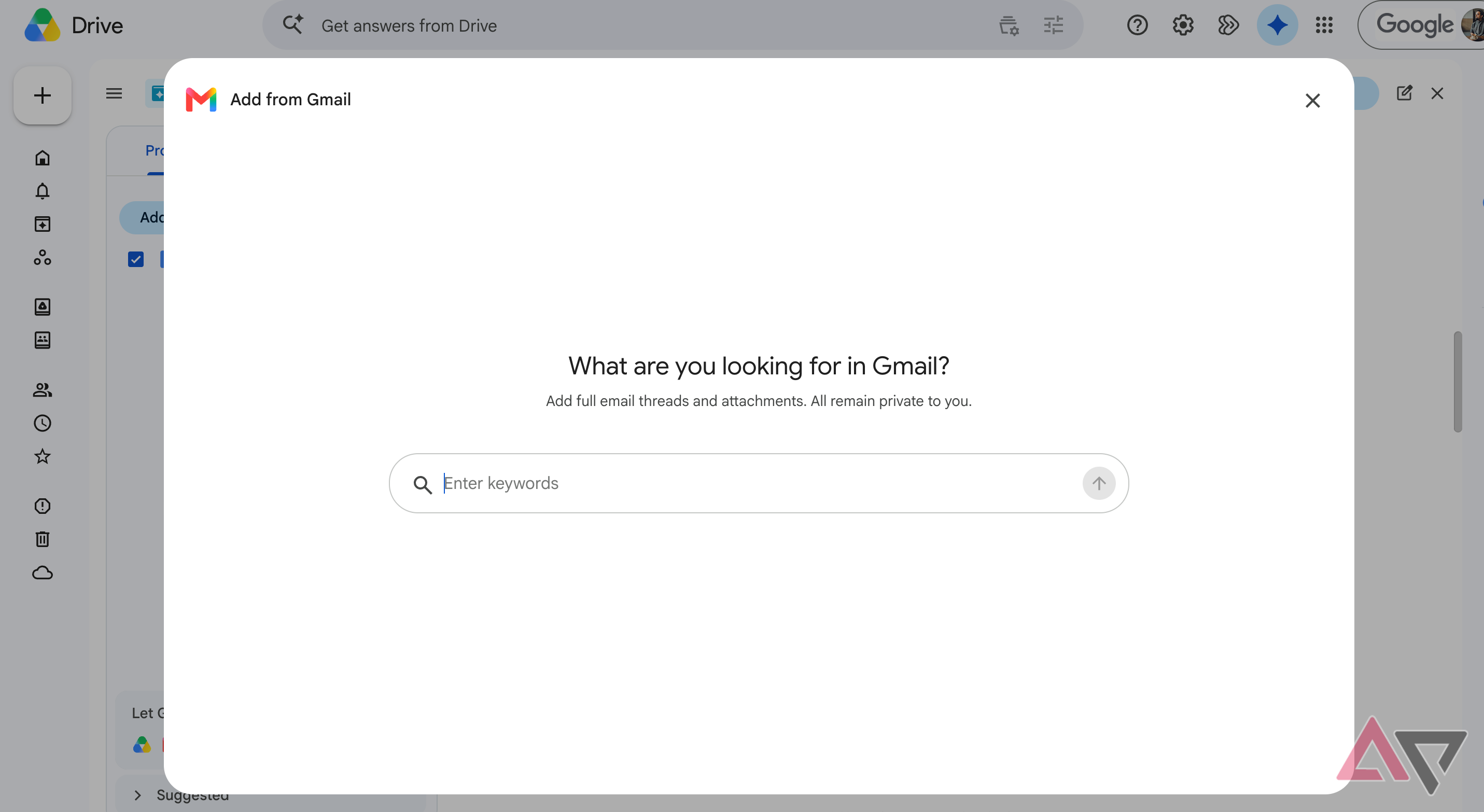
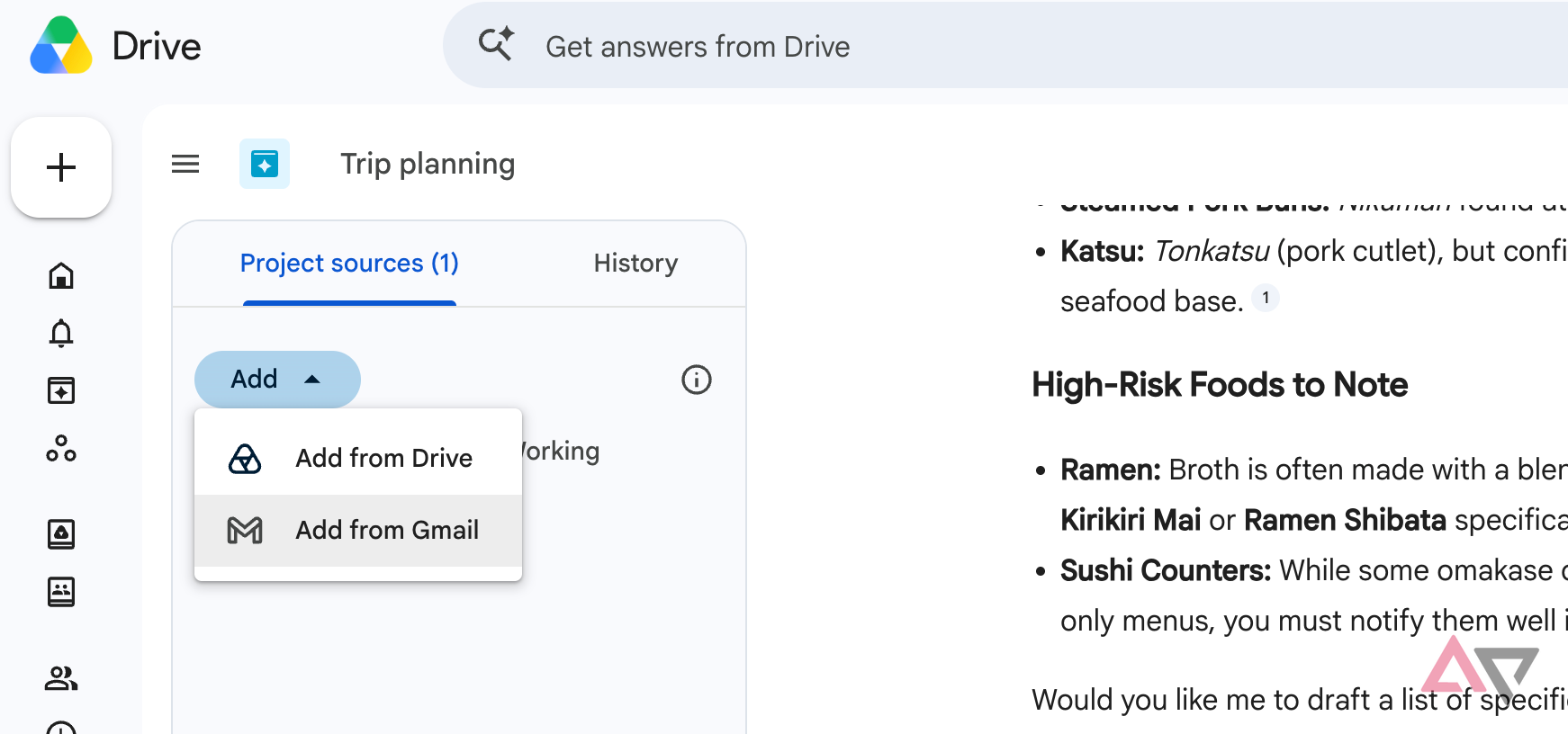
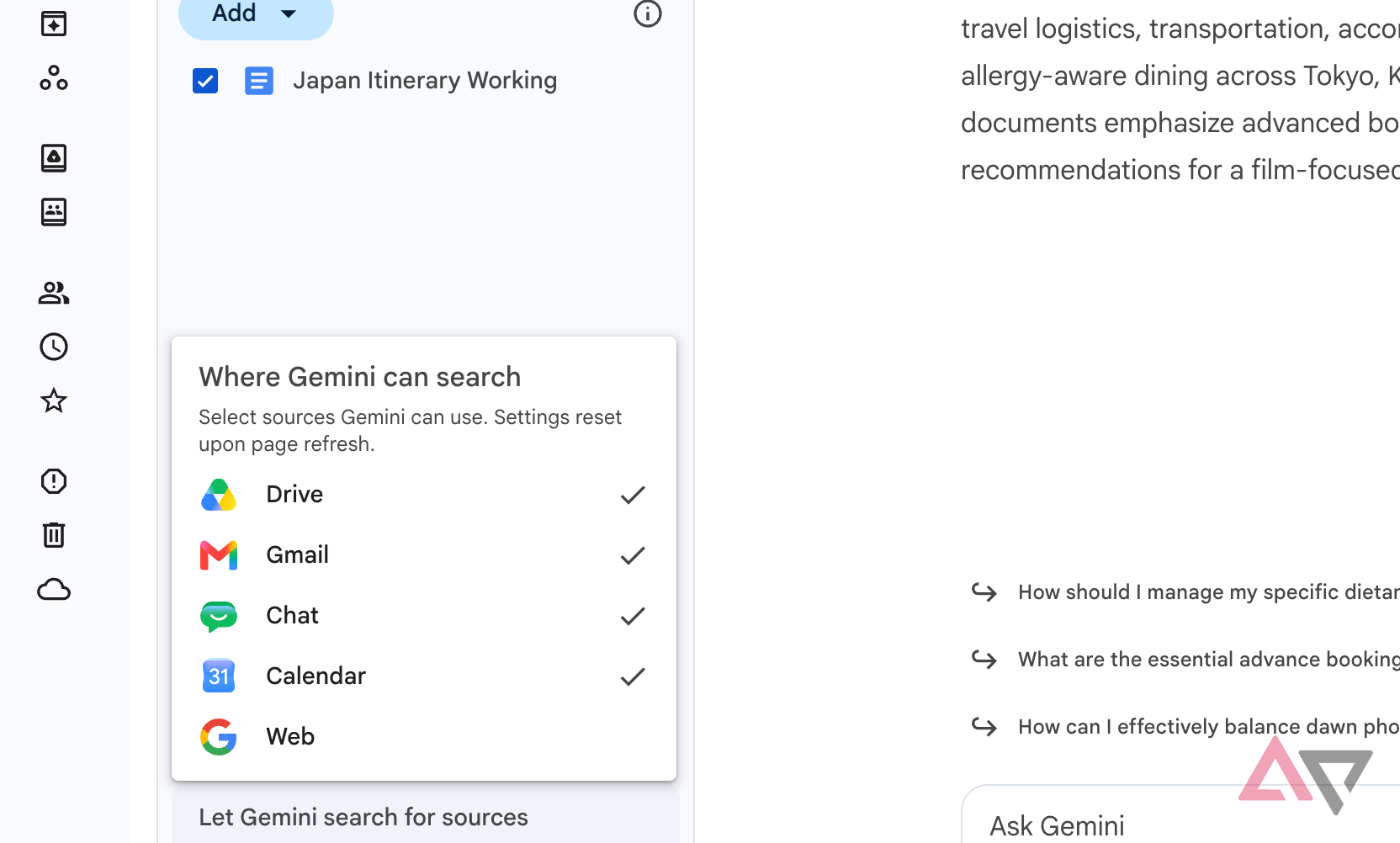
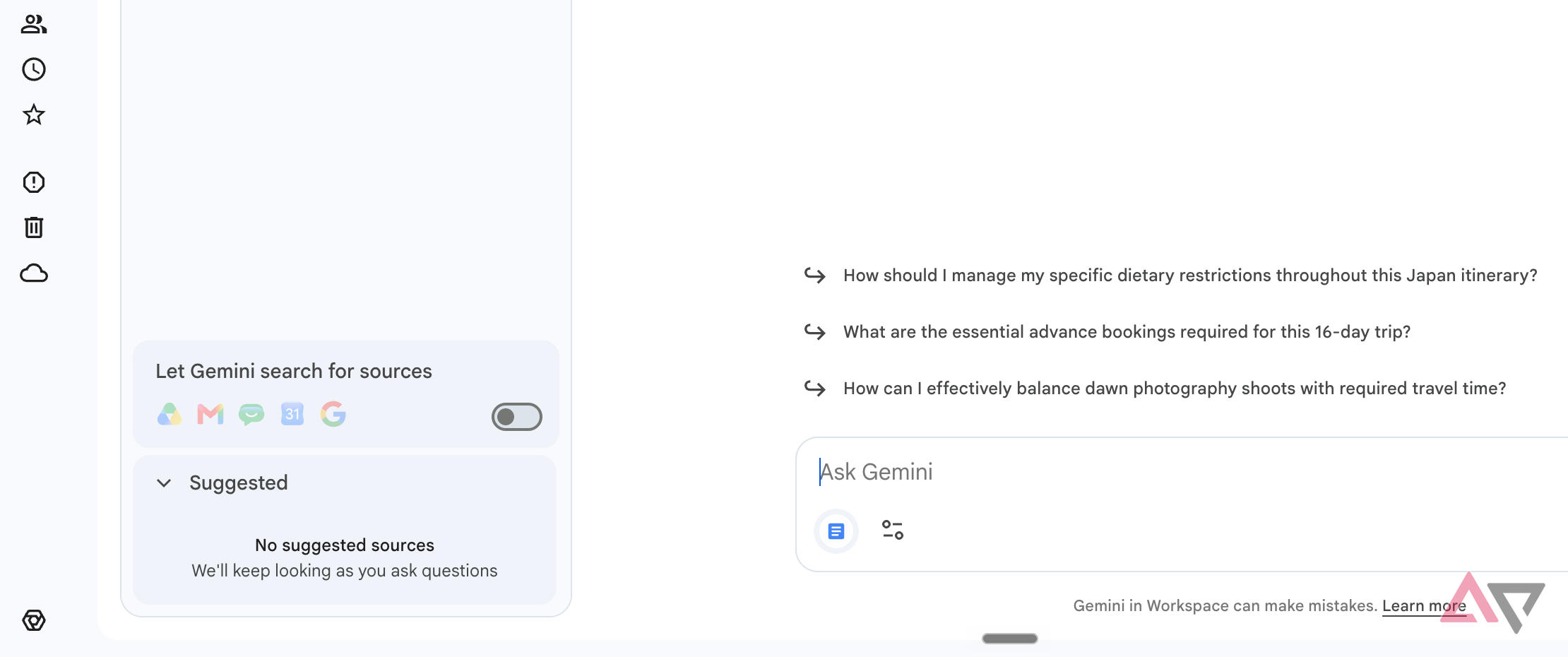
After you’ve created a project, you can add new sources. From here, you can select Add from Google Drive or Gmail.
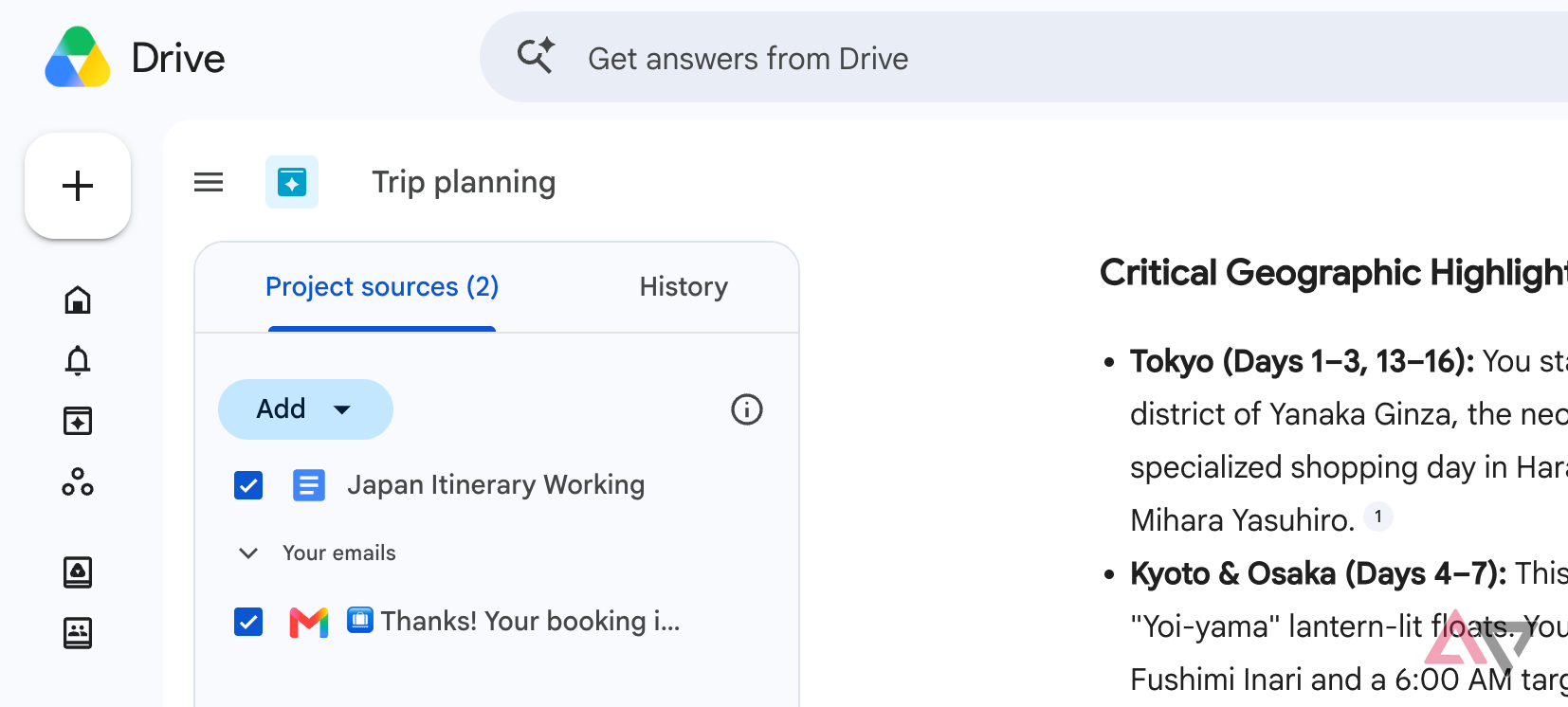
If you want to add existing emails, such as hotel bookings, press releases, or notes that someone sent to you, you can search for those specific emails in the pop-up tab.
After you’ve selected those emails, you can add them to your project without jumping through any hoops or switching tabs.
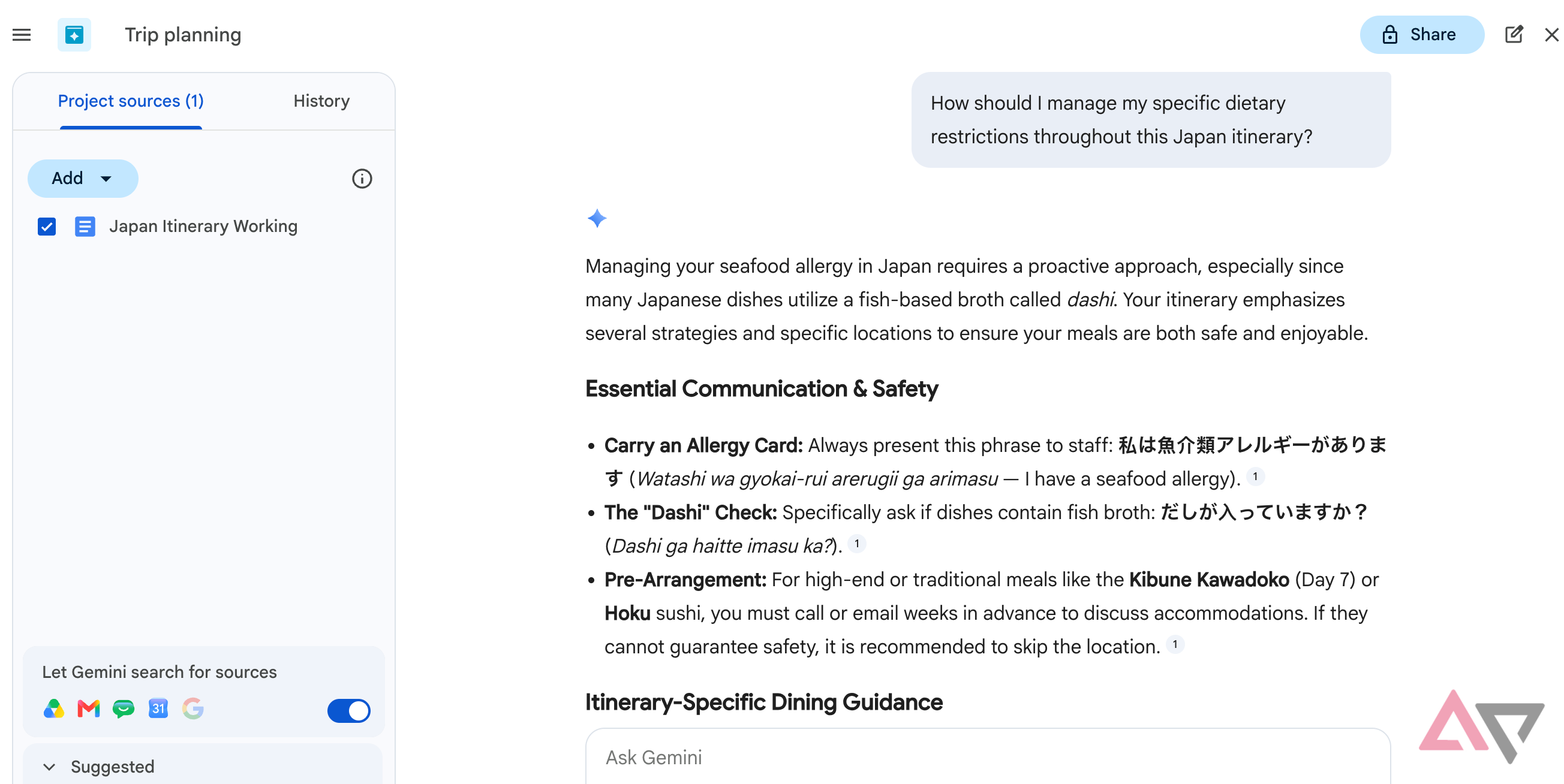
The same goes for Google Drive. When these resources are added to your project, you can immediately use Google Gemini to query these sources.
Google Drive projects don’t have the breadth of features that NotebookLM has.
However, like NotebookLM, it works only on the sources you attach to the project, so you know you’ll get accurate information.
I use it as a research hub, not a to-do planner
Google Drive Projects won’t replace your existing productivity tools or task managers, but it’s not designed for that purpose.
I find it to be a great tool to compile notes from various places.
Previously, I’ve used NotebookLM for the same task. But when it came to emails, where a lot of my discussions lie, it was a task to get them into the notebook.
With Google Drive projects, I can accomplish a similar source-grounded, query-based task flow without going through the cycle of uploading emails and notes to NotebookLM.
Now, when most of my work revolves around researching complicated topics over multiple days, having one place that remembers my files and their surrounding conversations has become absolutely invaluable in my productivity stack.