





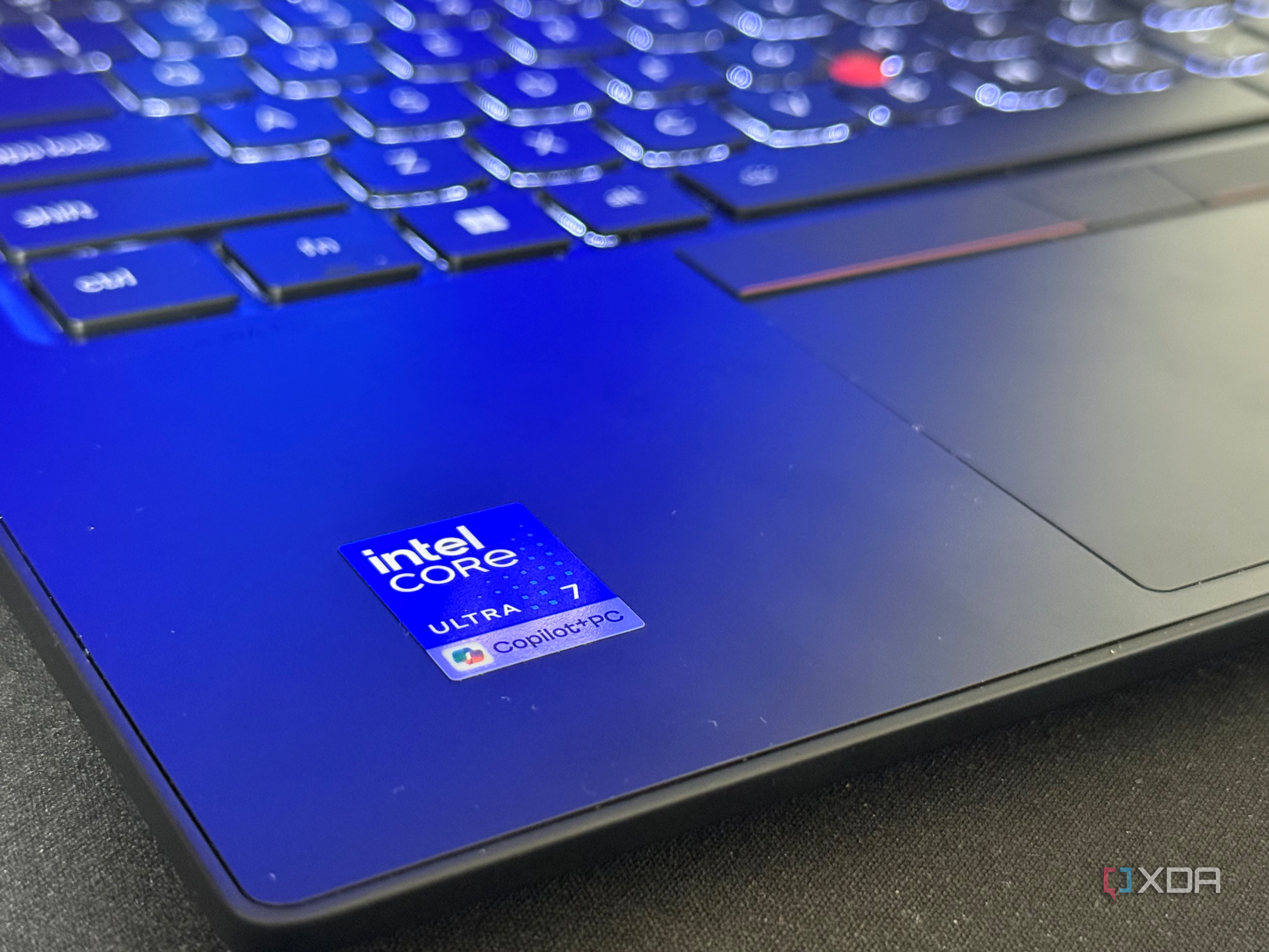
Microsoft’s obsession with AI integration began a couple of years ago, when the company announced Copilot as a web tool and then later added it to Windows. The company didn’t stop there; it even built custom computers and partnered with OEMs to build PCs with custom chips for AI tasks. You might remember the Snapdragon X Elite processor lineup of Copilot+ PCs that promised an on-device AI experience, multiple AI features, and integrations with popular apps.
However, it’s only feasible on PCs with new processors and an NPU, making it useless for normal users. I’m a Windows user who has had a gaming laptop since 2021, and it cannot run the Copilot AI experience that Microsoft thinks of as an obvious future. It wasn’t possible to completely remove Copilot from Windows before, but now there are multiple methods to do so. Let’s discuss them.
Enforcing Copilot left a bad impression
Microsoft lost its focus

Windows 11 was the first mainstream OS to attempt AI integration, and some features felt genuinely useful. I remember some early builds where Copilot launched as a sidebar and could perform some settings tweaks without opening the app. I could easily change the system’s theme and do more such small yet necessary actions. But Microsoft later scrapped the sidebar-style and action-execution idea for a complete desktop application.
The OS side was already a mess while Microsoft began announcing Copilot+ PCs and rebranding its popular products with the Copilot name. What started as a web chatbot assistant like ChatGPT is now the highlight of most Microsoft products. Even standard PCs (those without an AI chip) began to include a dedicated Copilot key to start the app rather than clicking the icon on the taskbar.
For the first time, Windows 11 had exclusive AI features that would only work on the Copilot+ PCs. It includes the much-controversial Recall, Click to do, Cocreator in Paint, and more. If you use a standard Windows 11 PC, there are AI options in every native app, but they don’t look good. Adding several AI options for summarizing or opening the file in other apps clutters the right-context menu. Even the desktop app is barely useful and lacks the refinement in answers you get with ChatGPT and other tools.
Microsoft is now toning down the AI approach it once thought was a stellar idea, and you’ll start seeing fewer of those suggestions in context menus and other locations. It’s possible to remove the Copilot app now via the Settings app, but uninstalling it is a temporary solution. Windows updates might reinstall the app, so using a more permanent solution is necessary. The OS lacked the appropriate policy to do so, but a recent update introduced a new Group Policy for removing the app.
Recall is one of Windows 11’s best features this year, but almost nobody will use it
The privacy trade-off stops users cold
Using the Group Policy Editor for the task
Purging Copilot
Group Policy Editor is a tool exclusive to Windows 11 Pro, Education, and Enterprise editions. It lets you manage system policies, which directly manage the system features. Windows 11 now has a new policy to manage Copilot’s presence, and it appears alongside other AI tool policies in the OS. The policy mentions a few conditions:
- Microsoft 365 Copilot and Microsoft Copilot are both installed.
- The Microsoft Copilot app was not installed by the user.
- The Microsoft Copilot app was not launched in the last 28 days.
If your device meets any of the above criteria, enabling the policy will remove Copilot from your system. Repeat the following steps:
- Press the Win key, type gpedit.msc, and press Enter.
- Click on the User Configuration option.
- Navigate to Administrative Templates -> Windows Components -> Windows AI section.
- Double-click on the “Remove Microsoft Copilot App” option to edit it.
- By default, the policy will be set to Not enabled. Click the Enabled option.
- Click on Apply, and then click OK.
- Close the Group Policy Editor and restart your PC to apply the changes.
Remember that if you previously uninstalled Copilot and then reinstalled it via the Microsoft Store, enabling the policy won’t affect it. I find the policy a bit weird, but it might have something to do with pre-including the app with the OS.
Windows 11 Home edition needs registry tweaks
No GPE convenience

If you use the Windows 11 Home edition, which is common for most PCs and laptops sold worldwide, you have to use registry tweaks as Microsoft doesn’t offer or support the Group Policy Editor on it. All the system policies essentially tweak a system registry key and its value, and it’s possible to remove Copilot even without the app. But don’t modify your registry without creating a backup.
I’ve broken multiple virtual machines while trying registry hacks, and it’s taught me a valuable lesson. Creating a system restore point and exporting a copy of the system registry to a USB drive are necessary before changing anything in the system registry. Once you do both these, launch the Registry Editor and repeat the following:
- Paste the following PATH in the address bar: HKEY_CURRENT_USER\Software\Policies\Microsoft\Windows\
- Click on the WindowsAI subkey from the list. If it doesn’t exist, create a new one.
- Right-click and select New > DWORD (32-bit) Value.
- Name the value RemoveMicrosoftCopilotApp and set its value to 1 while keeping the base as hexadecimal.
- Click OK and close the Registry editor.
- Restart your PC to apply the changes.
Alternatively, if you use PowerShell, you can run the following command to add or modify the WindowsAI key:
reg add "HKCU\Software\Policies\Microsoft\Windows\WindowsAI" /v RemoveMicrosoftCopilotApp /t REG_DWORD /d 1 /f

Both these methods will replicate the action of the Group Policy Editor and will remove Copilot from your system.
Copilot is barely helpful
Copilot tries to be a jack-of-all-trades and ends up disappointing in most areas. I barely used it as a chatbot and didn’t like anything else. The system control actions seemed exciting, but Microsoft charted a different path for the AI tool. It’s nowhere near as competent as ChatGPT and asks for credit for doing tasks in some apps. At least you now have the option to remove the app and prevent it from returning after a new update.