









If you’re thinking about switching to Linux, you’re probably comparing distros like Ubuntu, Fedora, or Mint and wondering which one is the best fit. But, with my decade-long experience using and recommending Linux, I think that’s the wrong question to ask. Instead, start by comparing GNOME and KDE Plasma, decide which one fits your workflow better, and then choose any distro built around that desktop environment (DE). That narrows the decision down to just two options.




The choice between GNOME vs. KDE Plasma can make or break your Linux experience
To GNOME or to KDE Plasma—that is the question

If you’re looking for a Linux desktop for everyday use, the choice of desktop environment matters far more than the distro you pick to run it. That’s because your desktop environment dictates how you launch apps, manage windows, switch tasks, tweak settings, and interact with your computer every single day.
Take Ubuntu and Fedora, for example. They use different package managers, follow different release schedules, and have different philosophies under the hood—but both are running GNOME, which translates to similar day-to-day user experiences. Compare that to Ubuntu and Kubuntu. They’re both Ubuntu underneath, but one uses GNOME and the other uses KDE Plasma, and they feel like completely different operating systems.
Yes, the distro is important, but it most determines what happens underneath. That matters when you start getting deeper into Linux. Developers and sysadmins care about package managers, init systems, repositories, and update cadence because they work close to the system. But for someone switching from Windows, the choice of desktop environment is usually far more important.
But why only GNOME and KDE Plasma?
I just argued that desktop environments can make or break your Linux experience—but there are more than a dozen of them. So why does the decision come down to GNOME and KDE Plasma?
The short answer is popularity and relevance. These are by far the two most widely used desktop environments, and nearly every mainstream distro you’ll come across either ship with one of them. While there are other well-known desktop environments like Cinnamon, Pantheon, or Xfce, they’re far less common.
More importantly, GNOME and KDE Plasma represent two opposite design philosophies. GNOME prioritizes simplicity, focus, and minimalism. KDE Plasma prioritizes flexibility, customization, and user control. Once you understand those two extremes, most other desktop environments become easier to place on that spectrum.
For example, Xfce leans closer to KDE Plasma in layout and workflow, but with a lighter footprint for older or low-spec systems. Pantheon takes a cleaner, more opinionated approach that feels closer to GNOME. And Cinnamon sits somewhere in the middle, balancing familiarity with flexibility—which makes it a safer default if you don’t want to do too much research.
But ideally, you should understand GNOME and KDE Plasma first. Once you know which philosophy fits your workflow, choosing the right Linux desktop becomes much easier.

I Tested 10 Popular Linux Desktop Environments, Here’s How I Rank Them
I looked at everything from power user to lightweight desktops.
GNOME
The desktop for minimalists
GNOME offers one of the most unique and novel desktop experiences in modern computing, not just on Linux. While most desktop environments—and operating systems—put the app launcher front and center, GNOME is built around a workspace-centric workflow.
Press the Meta key (the Windows key on most keyboards) and you open the Activities Overview. This shows your current virtual desktops—called workspaces—alongside the apps running inside them. Press it again, and you get the full app grid. From there, you can launch apps directly into specific workspaces and quickly build out the layout you need for a focused work session.
App windows also work differently. By default, GNOME doesn’t include minimize or maximize buttons—just a close button. The idea is to stop you from piling up minimized windows on a single virtual desktop and instead encourage you to separate tasks into dedicated workspaces. For example, you might keep your browser and document editor in one “writing” workspace, while apps like Slack or Discord live in another for communication.
It’s essentially a complete reimagining of how desktop multitasking works.
Visually, GNOME is clean, minimal, and distraction-free. There are very few interface elements competing for your attention. By default, you get a thin top bar for the clock and system controls—that’s about it. The whole system is designed to stay out of your way.
That simplicity extends to customization. Out of the box, GNOME keeps things fairly limited. You get the basics, but it can feel restrictive if you’re a power user. Fortunately, GNOME has a large extension ecosystem that lets you add new features and behaviors. The downside is that these extensions are third-party, so they can break after major GNOME updates. In some cases, you may have to wait weeks for compatibility fixes—assuming the developer is still maintaining them.
Love GNOME? These 5 Linux Distros Use It as Their Default Desktops
Discover which GNOME based distro matches your style.
KDE Plasma
The desktop for maximalists
KDE Plasma takes the opposite approach to GNOME. Where GNOME hides complexity, Plasma embraces it.
If there’s a feature you’ve seen on another desktop environment, there’s a good chance KDE Plasma already has it—or gives you the tools to build it yourself. That makes it one of the best desktop environments for power users, tinkerers, and anyone who likes shaping their operating system around their workflow.
By default, KDE Plasma feels familiar, especially if you’re coming from Windows. You get a taskbar-like bottom panel, a Start Menu-like app launcher on the left, a system tray on the right, and your pinned and running apps in the center. However, that default layout is just a starting point. Almost everything in Plasma is customizable. You can move panels, resize them, add new ones, swap launchers, and rework the desktop into almost anything you want.
For example, move the panel to the top, add a dock at the bottom, and suddenly you’ve got something much closer to macOS. Plasma also includes native support for themes, widgets, and desktop effects, which pushes customization even further.
I should also mention that like GNOME, Plasma also supports virtual desktops and an overview mode, but it goes beyond that with its Activities feature. You can think of it like virtual desktops for your virtual desktops. For example, you could create a “Work” activity with three virtual desktops: one for writing, one for research, and one for communication. Then you could create a separate “Gaming” activity with one desktop for Steam and your games, and another for Discord. You can even configure apps to automatically launch into specific activities and desktops.
That level of control makes KDE Plasma one of the most powerful and flexible desktop environments available. However, all that flexibility comes at the cost of complexity. Plasma gives you so many options that simply opening the Settings app can leave you feeling confused and overwhelmed by the sheer number of options thrown at your face.
Love KDE Plasma? These 5 Linux Distros Use Plasma as Their Default Desktops
Discover which KDE Plasma distro matches your style.
Which one should you pick?
The answer to the question you’ve been waiting for

By now, you probably already have a gut feeling about which desktop environment fits you better. But if that still feels too vague, ask yourself this:
As a Windows user, do you consider yourself a power user—the person your friends go to for tech advice? If yes, KDE Plasma will probably match your instincts better.
Or are you the kind of person who can work on a 13-inch Android tablet with nearly the same efficiency as on a 13-inch Windows laptop? If yes, that probably means the operating system matters less to you than the apps you use—and that’s exactly where GNOME shines. It gets out of your way.
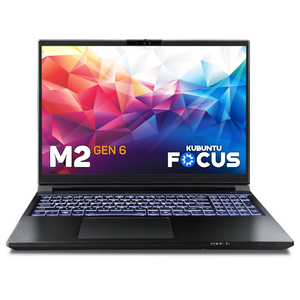

8/10
- Operating System
-
Kubuntu 24.04 LTS
- CPU
-
Intel Core Ultra 9 275HX (2.7GHz up to 5.4GHz)
This laptop is purpose-built for developers and professionals who want a Kubuntu Linux-powered portable workstation and gaming platform. It features an Intel processor capable of hitting 5.4GHz and both integrated graphics and a dedicated NVIDIA 5070 Ti GPU for when you need extra power for machine learning or games.
Linux gives you options—so make the right choice
A lot of Linux newcomers quit because they think they “don’t like Linux,” when, in reality, they just didn’t like the desktop environment they started with.
Linux isn’t a single user experience—it’s an ecosystem of wildly different workflows and philosophies. That’s why switching to Linux isn’t just about choosing a distro, it’s about understanding how you like to work, and then choosing a desktop environment that complements that workflow.
Here’s Why I Think KDE Is a Better Desktop Environment Than GNOME
GNOME is boring! KDE is for the cool kids.


