





USB hubs have become almost essential for people who use laptops and phones, especially since these devices seem to be shedding extra ports with each passing year. Hubs have been a good way of adding those ports back, but I’m doing something different with the Baseus Spacemate RD1 Pro. Instead of plugging this into a laptop — which it’s perfect capable of — I’m using it with my desktop PC. In fact, I’ve been using it with my PC ever since I got it, and it’s completely transformed my desk.
I’m not sure what happened, but years ago, my computer case stopped registering all four of my front USB ports. It’s probably a loose wire or something, but since I didn’t really rely on those much, I never thought much of it. When I needed to use a USB port, I’d have to crawl under my desk and plug something in. After picking up an Android gaming handheld, I found that I needed to go back and forth with an SD card, and that meant a lot of crawling under my desk. That’s not necessary any longer, thanks to the Spacemate RD1 Pro. This is an excellent, but very expensive, USB hub.


4/5
- No. of ports
-
2 HDMI, 2 USB-C 10Gbps, 4 data-only USB-A, SD/TF slots, Ethernet, 2 USB-C (PD 100W Max.), USB-C host, Qi Wireless Charging
- Power output
-
160W
- Display modes
-
2
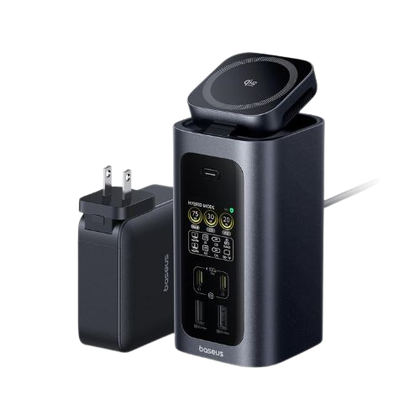
The Baseus Spacemate RD1 Pro is a 15-in-1 docking hub for your laptop or PC.
- 15 ports
- Wireless charging
- Small size
- Expensive
- Heavier than I’d like
Baseus Spacemate RD1 Pro specs
An expensive juggernaut
The Baseus Spacemate RD1 Pro has a ton of versatility, and it’s a perfect addition to any desktop or laptop setup. The only problem is that it costs $300, so it’s a tough pill to swallow. I can’t deny that its 15 ports don’t have a lot of value, and I even use the wireless charging pad more than I thought I would. We’re talking about an SD card slot, several USB-C ports, several USB-A ports, HDMI ports, and an Ethernet port.
This docking hub gives your laptop a lot more wiggle room if it lacks ports, but it costs almost as much as a budget laptop would. It’ll come down to whether that’s worth it to you or not, because while I love this hub, there are certainly cheaper alternatives.
- No. of ports
-
2 HDMI, 2 USB-C 10Gbps, 4 data-only USB-A, SD/TF slots, Ethernet, 2 USB-C (PD 100W Max.), USB-C host, Qi Wireless Charging
- Power output
-
160W
- Display modes
-
2
What I like about the Baseus Spacemate RD1 Pro
It does it all

It’d be a lot easier to list off the things I don’t like about this hub, but that’s for another section. I like pretty much all there is to like about this hub, and I’m going to use it every day for as long as it works. It’s a very versatile device, and after using my SD card for everything I need, I actually moved the hub over to the power strip I have my PC plugged into just so I don’t have to have my PC for when I want to use it. Now that I don’t have to have my PC turned on to use it, I actually use it more often. There’s a wireless charging Qi2 pad on top of the device that I set my Pixel Buds Pro 2 on top of to charge. I also use two of the fast-charging 100w USB-C ports on the front to charge my phone and FitBit Air, respectively.
I actually haven’t found many ways to use the back of the device all that often yet. The SD card port is great for when I need it, and I have been using it more often than I initially thought I would. The pair of HDMI ports are great for adding additional screens to laptops, but I don’t need that for my PC at the moment. Importantly, there are a pair of 480 Mbps USB-A ports on the back, and there’s an Ethernet port for people looking to add some stability to their laptop. All in all, this is an excellent hub that would be perfect for just about anybody who needs the ports.
Another thing worth mentioning is the small footprint. It’s not a light hub by any means, but it’s about the width of a water bottle, so it doesn’t take up a ton of space on my desk. I have a pretty clear desk as it is, but I don’t think it’d be difficult to fit this on a cluttered desk, especially if it means you can get some cables organized a bit better. The dock has a pair of modes to pick from, too. When I have it plugged into the power strip away from my PC, it’s always in charging mode. When it has a host, like a laptop or desktop, you can pick the Hybrid mode that opens it up for not only charging, but data transfer and video as well. This is how you use the SD card reader and the pair of HDMI ports. Switching between the modes just requires holding the screen button down for two seconds. If you ever forget the steps, they’re printed on a sticker on the side of the hub. I just kept mine attached to the side, but you can peel it off for a cleaner look.
 Quiz
Quiz
Laptop docking hubs
Trivia challenge
Ports, protocols, and power delivery — how much do you really know about
laptop docking hubs?
ConnectivityHardwareStandardsPowerPorts
Which interface standard is most commonly used by modern laptop docking hubs to
carry both data and power over a single cable?
Correct! USB-C has become the dominant connection standard for modern
docking hubs thanks to its ability to carry data, video, and power simultaneously. Its reversible
connector design and broad compatibility made it the go-to choice for laptop manufacturers and accessory
makers alike.
Not quite — the answer is USB-C. While USB-A 3.0 and Thunderbolt 2 were
popular in their eras, USB-C’s ability to handle data, display output, and power delivery over one cable
made it the standard of choice for today’s docking hubs.
What is the maximum power delivery wattage defined by the USB Power Delivery 3.1
specification, relevant to high-end docking hubs?
Correct! USB Power Delivery 3.1 raised the ceiling to 240W, a massive
leap from the previous 100W limit. This makes it viable for charging even high-performance laptops and
workstations through a single USB-C connection on a docking hub.
Not quite — the answer is 240W. USB Power Delivery 3.1, introduced in
2021, extended the maximum power output from 100W to 240W, enabling docking hubs to charge increasingly
power-hungry laptops and workstations through a single cable.
Which Thunderbolt version introduced a maximum data transfer speed of 40Gbps, making
it a popular choice for premium docking hub connections?
Correct! Thunderbolt 3 was the version that hit 40Gbps and also adopted
the USB-C connector form factor, which was a major turning point. It allowed a single small cable to
drive high-resolution displays, transfer files at blazing speeds, and charge a laptop simultaneously.
Not quite — the answer is Thunderbolt 3. While Thunderbolt 4 maintained
the same 40Gbps speed, it was Thunderbolt 3 that first introduced this bandwidth ceiling. Thunderbolt 3
also switched to the USB-C physical connector, massively boosting its adoption in laptops and docking
hubs.
What does the term ‘passthrough charging’ mean in the context of a laptop docking
hub?
Correct! Passthrough charging means the docking hub accepts power from
an external adapter and then forwards that power to the connected laptop, so you only need one cable
running to your laptop for both data and charging. It’s one of the most convenient features of a modern
USB-C hub.
Not quite — the answer is that the hub delivers power from a wall
adapter to the laptop. Passthrough charging is a key docking hub feature that lets the hub sit between
the power source and your laptop, consolidating connections so a single USB-C cable handles both data
and charging.
Which display output standard, commonly found on docking hubs, uses a royalty-free
protocol and is often used alongside USB-C via an alternate mode?
Correct! DisplayPort is a royalty-free standard developed by VESA and is
widely supported in docking hubs. DisplayPort Alternate Mode allows the signal to be tunnelled directly
over a USB-C cable, making it especially common in compact hubs that want to avoid adding a dedicated
video chip.
Not quite — the answer is DisplayPort. Unlike HDMI, which requires
licensing fees, DisplayPort is royalty-free and integrates neatly into USB-C via Alternate Mode. This
makes it a cost-effective and technically elegant choice for docking hub manufacturers.
Before USB-C docking hubs became mainstream, which proprietary connector did many
Dell laptops use to connect to their official docking stations?
Correct! Dell’s E-Port connector was a proprietary interface found on
the underside of many Dell Latitude and Precision laptops. It allowed users to snap the laptop directly
onto a docking station for instant access to peripherals, displays, and network connections without
plugging in individual cables.
Not quite — the answer is Dell’s E-Port connector. This proprietary
bottom-mounted connector was Dell’s solution for enterprise docking before USB-C arrived. It allowed
laptops to physically dock and instantly connect to a full desktop setup, which was a popular feature in
corporate environments.
What is the key technical difference between a USB hub and a Thunderbolt docking hub
when connecting multiple monitors?
Correct! Thunderbolt docks benefit from the high bandwidth of the
Thunderbolt protocol to natively drive multiple displays without additional hardware. Standard USB hubs
that offer video output typically rely on DisplayLink technology, which uses software rendering and a
dedicated chip to compress and transmit display data.
Not quite — the answer is that Thunderbolt docks natively support
multiple high-res displays, while USB hubs usually rely on DisplayLink chips. DisplayLink is a clever
workaround that compresses video data over USB bandwidth, but it introduces CPU overhead and can affect
performance compared to a native Thunderbolt connection.
Which feature, increasingly common on premium docking hubs, allows a single hub to
simultaneously output video to two 4K displays at 60Hz over one Thunderbolt 4 cable?
Correct! Multi-Stream Transport (MST) is a DisplayPort feature that
allows multiple video streams to be combined and sent through a single connection, then split out to
separate displays at the docking hub. This is how premium Thunderbolt docks can drive two 4K60 monitors
from a single cable to the laptop.
Not quite — the answer is Multi-Stream Transport (MST). This DisplayPort
technology enables a docking hub to carry multiple independent video streams over one connection and
then distribute them to separate screens. It’s a crucial feature for professionals who want a clean
dual-monitor desk setup with minimal cable clutter.
Your Score
/ 8
Thanks for playing!
What I don’t like about the Baseus Spacemate RD1 Pro
Price is the main factor

As much as I love using this hub, I have to understand that I received it free of charge for review purposes, and others won’t be in that same boat. I’ve used USB hubs in the past and liked them, and none of them rivaled the $300 price tag you see here. Keep in mind that this is a 15-in-1 hub, and if you don’t need all those ports, there are far cheaper options to choose from. If you stay in the Baseus family, you can find a similar USB-C 11-in-1 hub for $200. The point is that I think you will only be able to stomach the price tag here if you’re willing to use all the ports. If you don’t need all of this, you can downgrade to something more affordable while still coming away with a good product.
Another downside is the weight of the hub. I understand that it pretty much comes with the space, but this hub comes with some noticeable heft that would greatly weigh down a bag. I wouldn’t want to move this back and forth between rooms or buildings, so it’s best suited for a long-term home on a desk. Fortunately, that’s where I have mine, but if you want to bring yours to work and connect some extra monitors to your laptop, you’ll have to deal with the extra weight.
Other than these two problems, I don’t have a lot to say that’s bad about the hub. I think the deciding factor for a lot of people will be the price tag. I don’t know if I’d want to shell out $300 for this hub, but after using it for a few weeks, I also don’t want to go back to a world where I don’t have it.
Should you buy the Baseus Spacemate RD1 Pro?
If you can afford it, yes

Ultimately, I recommend the Baseus Spacemate RD1 Pro. It’s an excellent hub for all your devices, and if you can manage the price tag, it’ll make an excellent addition to your desk. It doesn’t take up a lot of space, it adds a ton of versatility to both a laptop and a desktop, and the wireless charging pad is an excellent touch.
If you don’t need all the ports the Spacemate RD1 Pro has to offer, there are other, more affordable options. I loved my time with the hub, and it saved me a lot of trouble from having to dig around my PC’s USB ports since I had everything on my desk instead of under it. It’s also a great addition to a laptop without a lot of ports, but I don’t think most people need the sheer number of ports on display here. If you do, then look no further than the Spacemate RD1 Pro.
- No. of ports
-
2 HDMI, 2 USB-C 10Gbps, 4 data-only USB-A, SD/TF slots, Ethernet, 2 USB-C (PD 100W Max.), USB-C host, Qi Wireless Charging
- Power output
-
160W
- Display modes
-
2