





As the long weekend approaches, now’s the perfect time to make your homelab more accessible to those in your home. From making it easier to download a file from your NAS to adding one-click pre-defined shell commands, here are three simple but effective homelab projects to try this weekend.
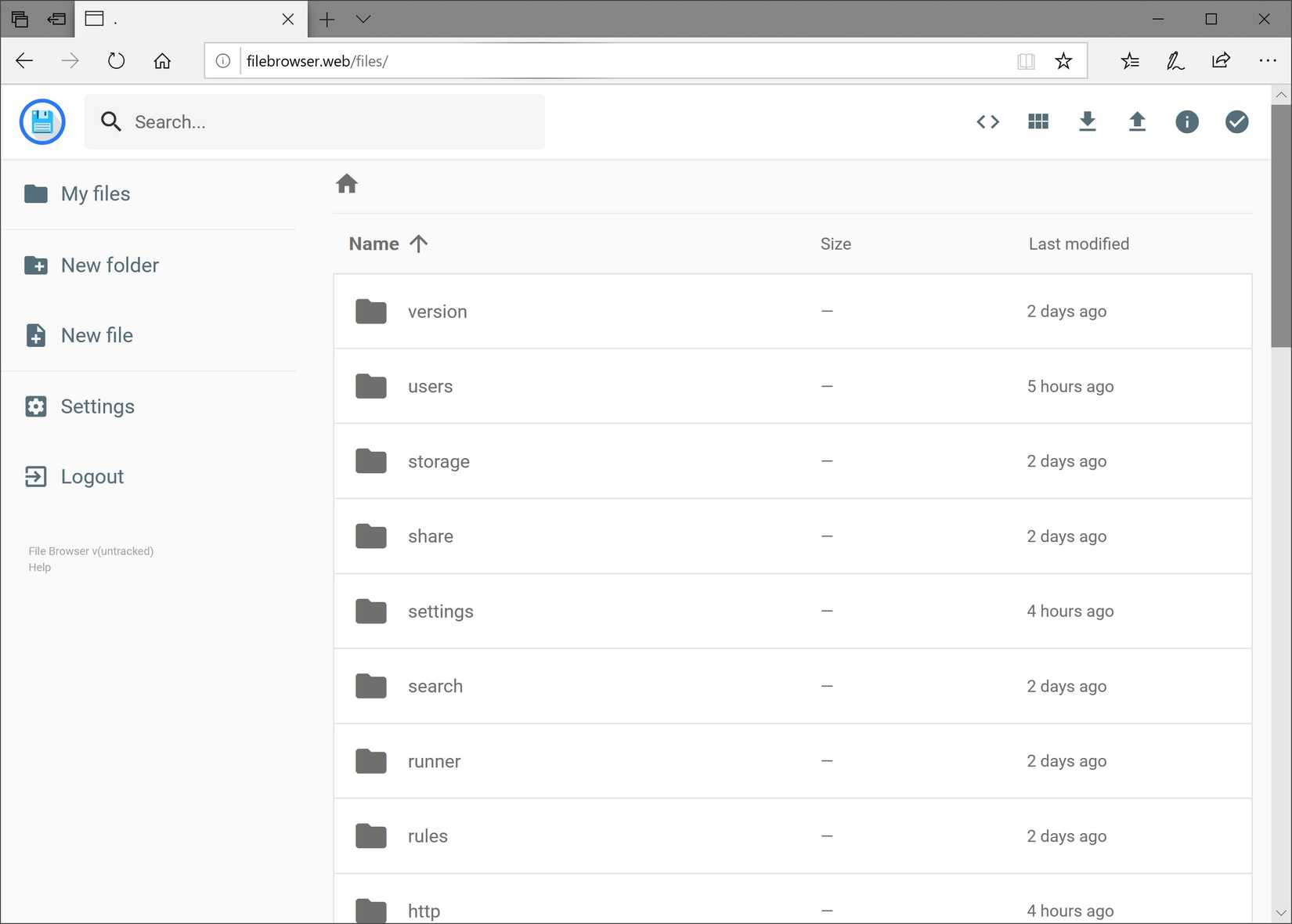
Spin up File Browser so you can easily browse your files
Sometimes it’s the simple things that make the biggest difference

My main server in my homelab runs Unraid, but TrueNAS also falls prey to the same fate—browsing files on the NAS is a pain.
Sometimes I just want to quickly navigate the system and download a single file without having to mount the server to my computer. I’ve been on my wife’s iMac many times when I needed to just grab a file, and logging in over SMB is just not worth it most of the time.
That’s where File Browser comes in. It does exactly what the name implies: it allows you to browse files. It runs as a Docker container on your server, and you can expose any folder that you give the container access to.
It does have user accounts, so you’re able to make sure it stays nice and locked away behind a login for security purposes. However, it’s much easier to open a web browser and log in than to try and mount an SMB file share on a computer if all you need is to grab a single file.
Another way to use File Browser is for uploading files. In the same vein, if I just need to throw a file to the server but don’t want to mount SMB, I can just use File Browser. It’s also way easier to use File Browser to upload or download something from my phone than trying to use the Files app.
Really, unless I’m accessing lots of files over and over, I just use File Browser instead of mounting via NFS or SMB. It’s simpler and it just works.
See your servers with a bird’s eye view using Cockpit
A single pane of glass for your entire homelab

If you run multiple virtual machines or physical servers in your homelab, then you very likely want to monitor them in some way. Checking CPU, RAM, and storage usage, peeking at system health, managing services, updating packages, and more can be a headache if it all has to be managed individually.
That’s what Cockpit was designed for. Built to give you a single pane of glass to view your entire homelab through, Cockpit is a web dashboard that lets you manage your Linux servers from a browser instead of a terminal.
Now, Cockpit isn’t designed to be a homelab orchestration platform, but purely a basic server control panel. It surfaces those specs I mentioned, as well as handles basic storage or network tasks, gives you a web terminal if you do need it, and even lets you manage users.
It’s perfect to run on Raspberry Pis, mini PCs, or any other Linux box that you want to manage without having to SSH in for every little thing.
OliveTin lets you easily run pre-defined shell commands from anywhere
No terminal access required
OliveTin takes the web-based dashboard aspect of Cockpit and goes one step further. While Cockpit lets you monitor your servers and do light maintenance, OliveTin allows you to build pre-defined shell commands that run at the click of a button.
If you have commands that you’re often running on your server, like restarting a Docker container, clearing a cache, or running a maintenance task, OliveTin allows you to do those things with the click of a button. It handles everything on the backend so you don’t have to SSH into the server to do it anymore.
I think OliveTin could be an extremely useful piece of software in a homelab. In my own homelab, there have been many times when Home Assistant or Plex stopped working and needed a reboot to start working again. In those instances, I had to SSH into the server or log into the Docker control plane to reboot the container or virtual machine.
Had I been using OliveTin, I could have just given the people in my house access to OliveTin so they could click a single button that would either make sure the NFS share was mounted properly and restart the Plex container, or issue the VM stop and start command on Proxmox for Home Assistant.
I’ll definitely be checking out OliveTin because it could make my entire homelab more accessible to those in my house who aren’t familiar with terminals.
-

- Brand
-
GEEKOM
- CPU
-
AMD Ryzen 5 7545U
The GEEKOM A7 Mini PC’s 2026 refresh comes with a lot of nice features. For starters, it ships with Windows 11 Pro pre-installed and activated. It also features a 40Gb/s USB4 port on the back, alongside 2.5 Gigabit Networking built-in. Add to that the ultra-compact size and plethora of ports, and this mini PC is ready for whatever you need.
-

- Brand
-
Ugreen
- Memory
-
8GB (Upgradalble to 64GB)
The Ugreen DXP2800 GT NAS is the perfect starter system for anyone looking to get started in homelabbing. With two 3.5-inch drive bays and two NVMe slots, this NAS also supports user-upgradable RAM and has 10-gigabit networking.


Your homelab doesn’t have to be impossible to access to be secure
Sometimes it’s easy to think that a homelab has to be inaccessible to anyone but us to be secure, but that’s simply not the case. Sure, having everything locked down to just one user, authenticated by an SSH key, with only one IP address able to SSH in is extremely secure, but it’s also unnecessary.
So, take some time this weekend to make your homelab more accessible to those who might not even know what SSH stands for.